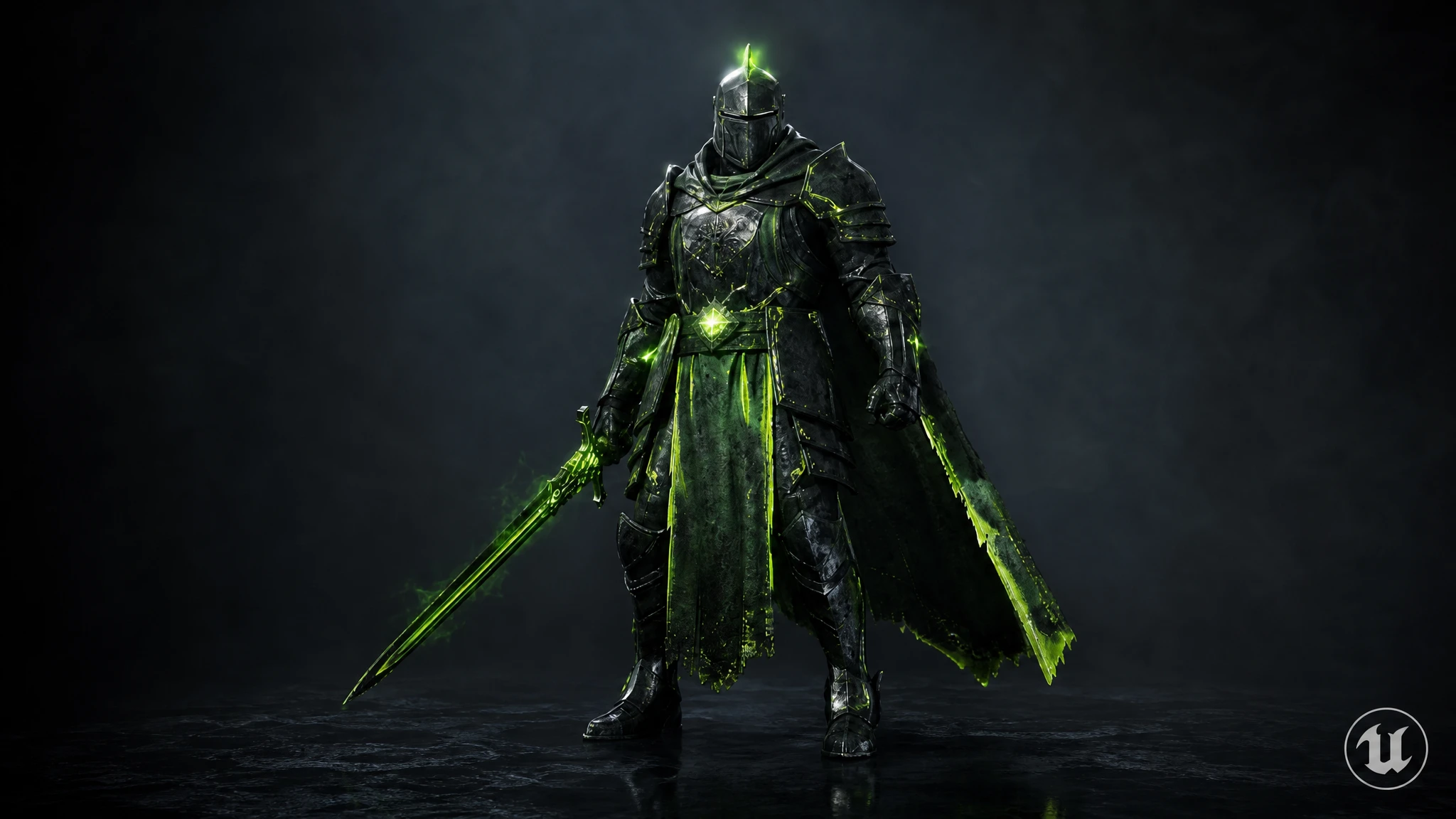
01What is Rapid Assets?
Rapid Assets is a free Unreal Engine plugin that turns text prompts into production-ready images and 3D Static Meshes, then imports them directly into your Content Browser. Install it as a native UE5 plugin, sign in, and generate without ever leaving the Unreal Editor.
Type what you need and finished assets land in Content/RapidAssets/ automatically: images as Texture2D assets, 3D models as Static Meshes with materials, ready to drag into any level. Generation runs in the Rapid Assets cloud, so your machine stays fast.
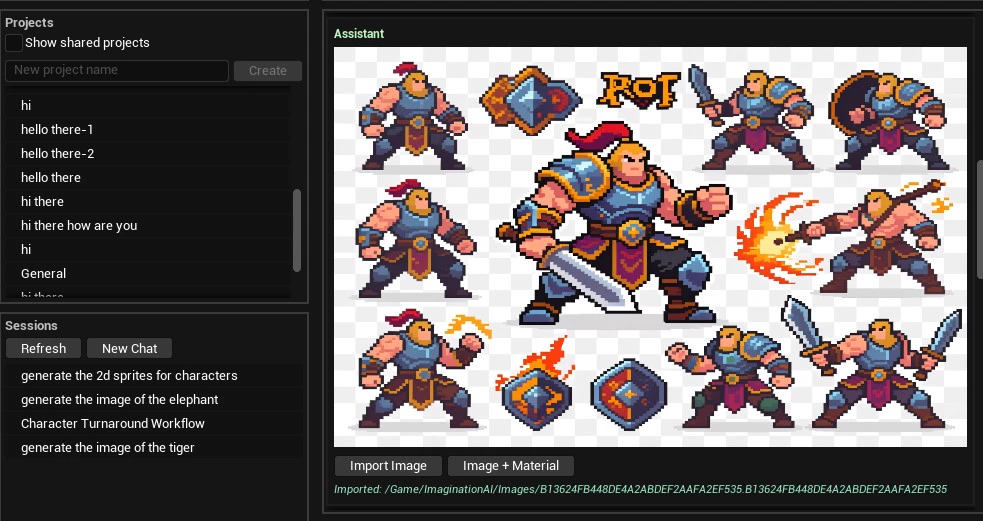
Sprite sheet as Texture2D
Pixel-art character sprite sheet, generated and auto-imported as a Texture2D asset.
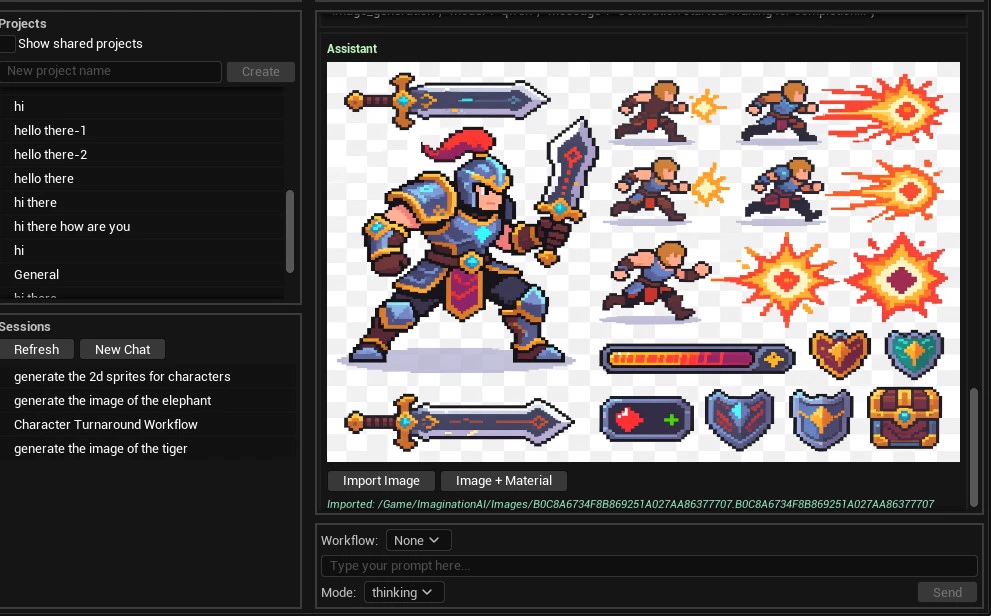
Animation-ready sheets
Sprite animations with items and effects, imported into the Content Browser in one click.
02How it works
The entire pipeline is designed so that you only ever do the creative part. Here's what happens from prompt to placed asset:
Describe it
What happens: you type a prompt (or pick a workflow) in the Rapid Assets panel inside the Unreal Editor and choose Thinking or Fast mode. Why it matters: natural language replaces hours of marketplace searching. You describe exactly what your game needs.
Generate in the cloud
What happens: the plugin securely sends your request to the Rapid Assets backend, where GPU generation runs. Why it matters: the heavy compute happens off your machine, so the Editor stays fast and responsive.
Stream live progress
What happens: generation status streams back in real time via server-sent events, with automatic polling as a fallback. Why it matters: you always see exactly where each job stands. No guessing, no manual refreshing.
Auto-import to the Content Browser
What happens: the moment a generation completes, the asset downloads and imports automatically as a Texture2D or Static Mesh into Content/RapidAssets/. Why it matters: no Downloads folder, no manual import settings, no file plumbing.
Use it in Unreal
What happens: drag the asset from your Content Browser straight into a level, Blueprint, Material Graph, or Widget Blueprint. Why it matters: idea to in-engine asset with zero extra steps.
03Requirements: check before you install
Make sure your setup is covered before following the install steps. If you're on UE5 with an internet connection, you're good to go.
| Supported UE versions | Unreal Engine 5.0 and above |
|---|---|
| Precompiled build | Targets UE 5.7 on Windows 64-bit. On other versions Unreal may prompt to rebuild the plugin (requires Visual Studio with the C++ game development workload) |
| Supported platforms (Editor) | Windows 10/11 and macOS |
| Render pipeline support | Lumen, Nanite, and traditional rasterization. Imported textures and meshes work across all pipelines |
| Import formats | Images as Texture2D · 3D models as Static Mesh with auto-generated Materials |
| Account | A free Rapid Assets account to sign in |
| Hardware | Any machine running Unreal Engine 5. Generation is cloud-based, so no high-end local GPU is required |
| Internet connection | Required for cloud generation; import and Content Browser access is local |
04Install the plugin, step by step
Rapid Assets ships with a one-click installer, so there's no manual folder copying and no build step on the supported configuration. Already have a Rapid Assets account? It works across all plugins. New here? Create a free account first, then follow the five steps below.
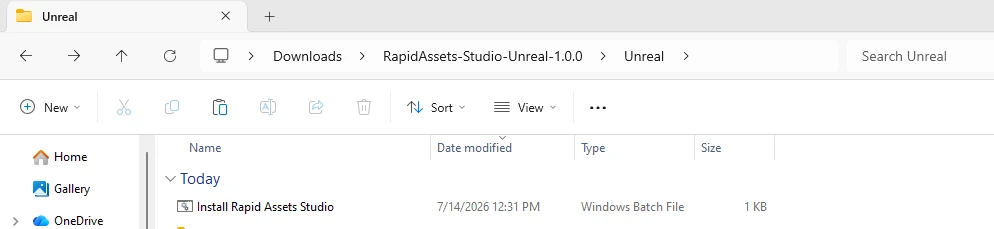
Run the installer
In the downloaded folder, open the Unreal subfolder and double-click Install Rapid Assets Studio.bat. The installer window opens automatically.
Browse to your project folder
Click Browse and navigate to your Unreal project root, the folder that contains your .uproject file. Select it and click OK.
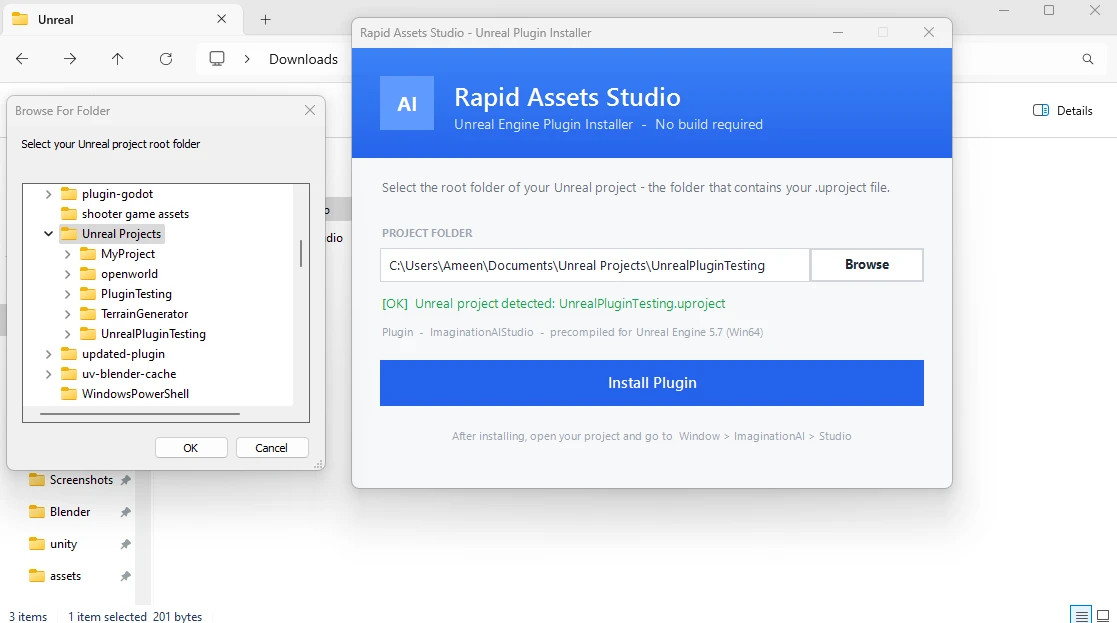
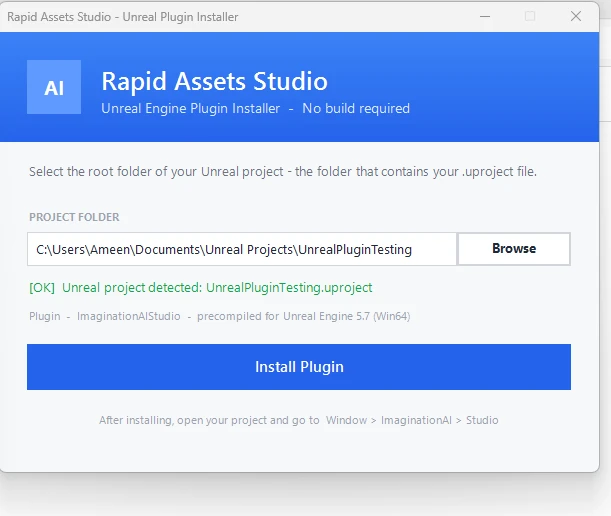
Project detected: click Install
The installer auto-detects your .uproject file and confirms "Unreal project detected". Click Install Plugin to copy it into your project's Plugins folder. No build required.
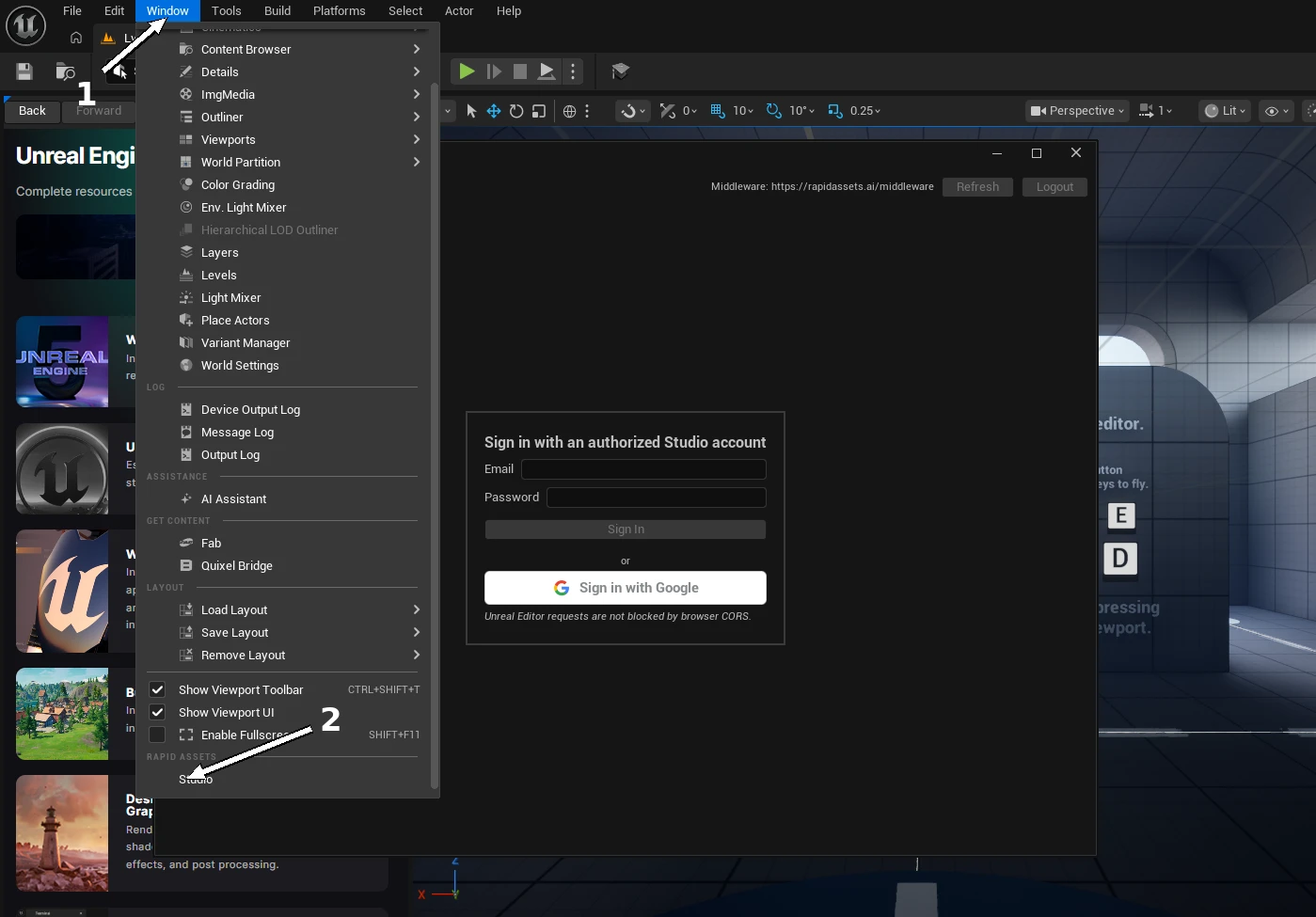
Open Studio in Unreal
Open your project in Unreal, then go to Window ▸ Studio (under the Rapid Assets section at the bottom of the menu) to open the plugin panel.
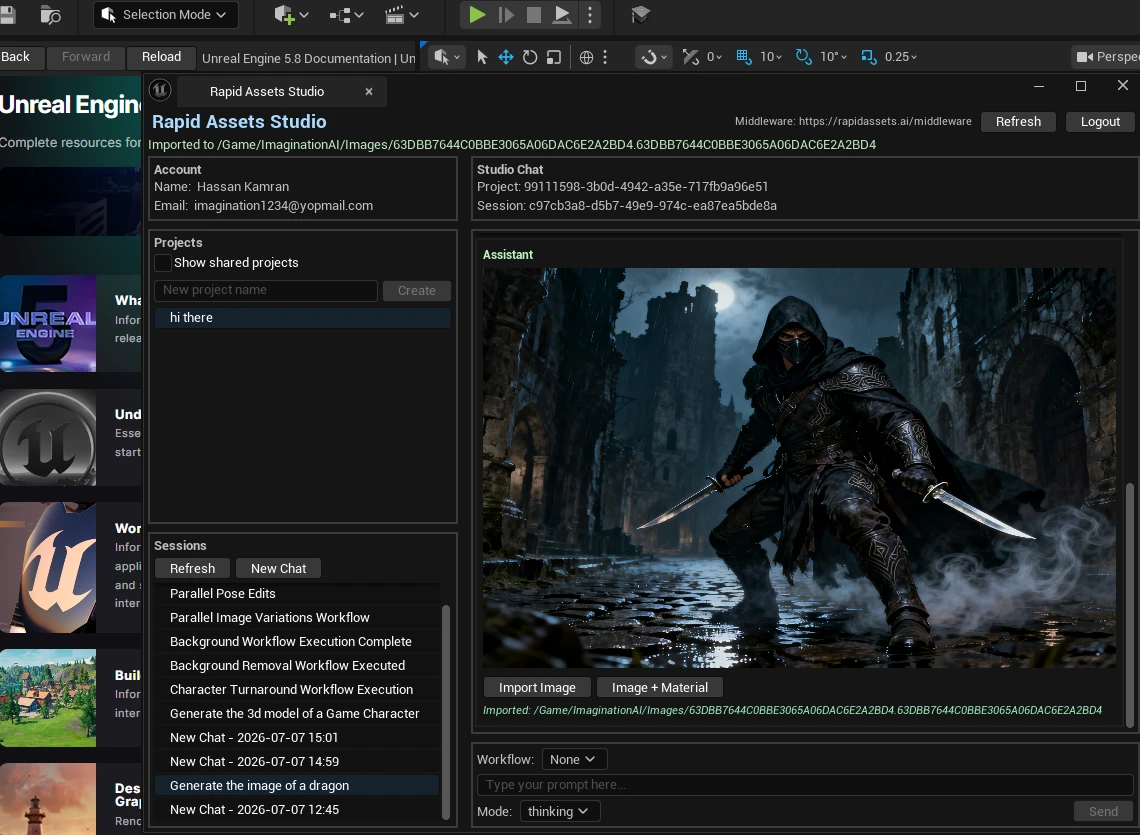
Sign in
Sign in with your free Rapid Assets account. The Studio panel docks like any other Unreal Editor window, and your projects sync with the web app.
On a different engine version or platform? The precompiled build targets Unreal Engine 5.7 / Win64. On another version, Unreal may ask to rebuild the plugin, which needs Visual Studio with the C++ game development workload. For UE 5.7 on Windows it just loads. No build required.
05Your first asset in 60 seconds
With the plugin installed and signed in, generating your first asset takes under a minute:
Pick a project
In the Studio panel, select an existing project or create a new one. Projects keep your generations organized and sync with the web app.
Describe what you need
Type a prompt, e.g. "a stylized health potion bottle, glowing red liquid, game icon style", choose Thinking or Fast mode, and hit Send. Progress streams back live.
Import with one click
Click Import Image (or Import Model for 3D). The asset lands in Content/RapidAssets/ in your Content Browser. Drag it into your level and keep building.
06Key features
Everything you need to generate, import, and use assets without leaving Unreal Engine.
Text-to-Image
Describe any image (concept art, textures, UI, key art) and generate it in high resolution inside the Editor.
Text-to-3D
Turn a prompt into a textured Static Mesh that imports with materials and drops straight into your level.
6 Pro Workflows
Purpose-built pipelines for turnarounds, pose sheets, background removal, variations, and more.
One-Click Import
Finished assets auto-import to Content/RapidAssets/ as Texture2D and Static Mesh assets.
Auto Material Creation
Generated textures are automatically wired into a Material Instance, ready to apply to any mesh.
Content Browser Sync
Generated assets appear in the Content Browser immediately: named, organized, and ready to use.
Real-Time Streaming
Live generation progress via server-sent events, with automatic polling fallback.
Projects & Sessions
Organize work into projects and persistent chat sessions. Pick up exactly where you left off.
Thinking & Fast Modes
Thinking mode for richer results, Fast mode for rapid iteration and quick tests.
07Text-to-Image generation, inside Unreal Engine
Type a description in the plugin panel, pick your mode, and hit Send. A high-resolution image streams back live. Click Import Image to add it to your Content Browser as a Texture2D, or Image + Material to also get a ready-to-use Material Instance. Every image below was generated by Rapid Assets.
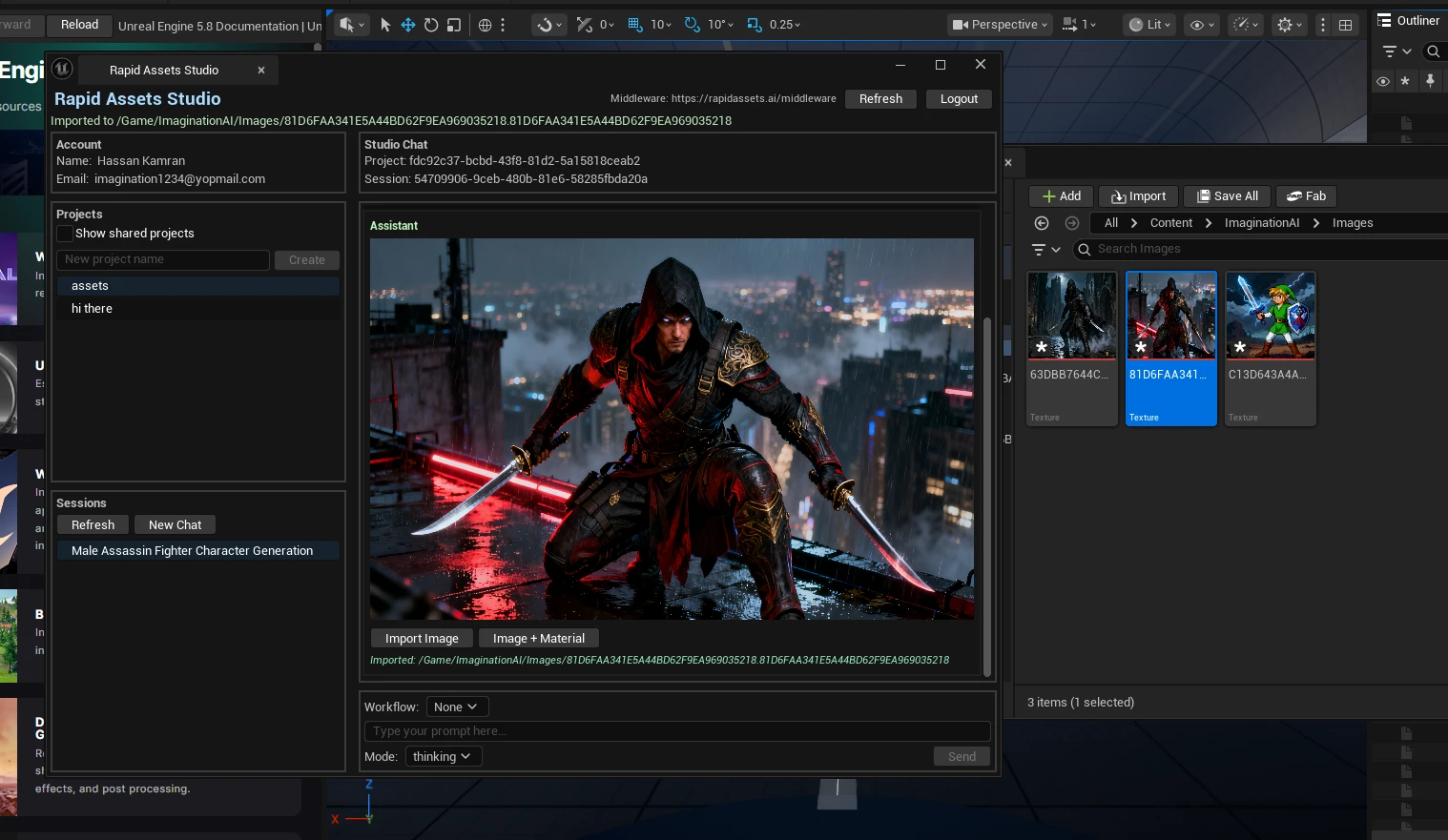
Cinematic battle key art, generated live in the plugin and imported as a Texture2D.
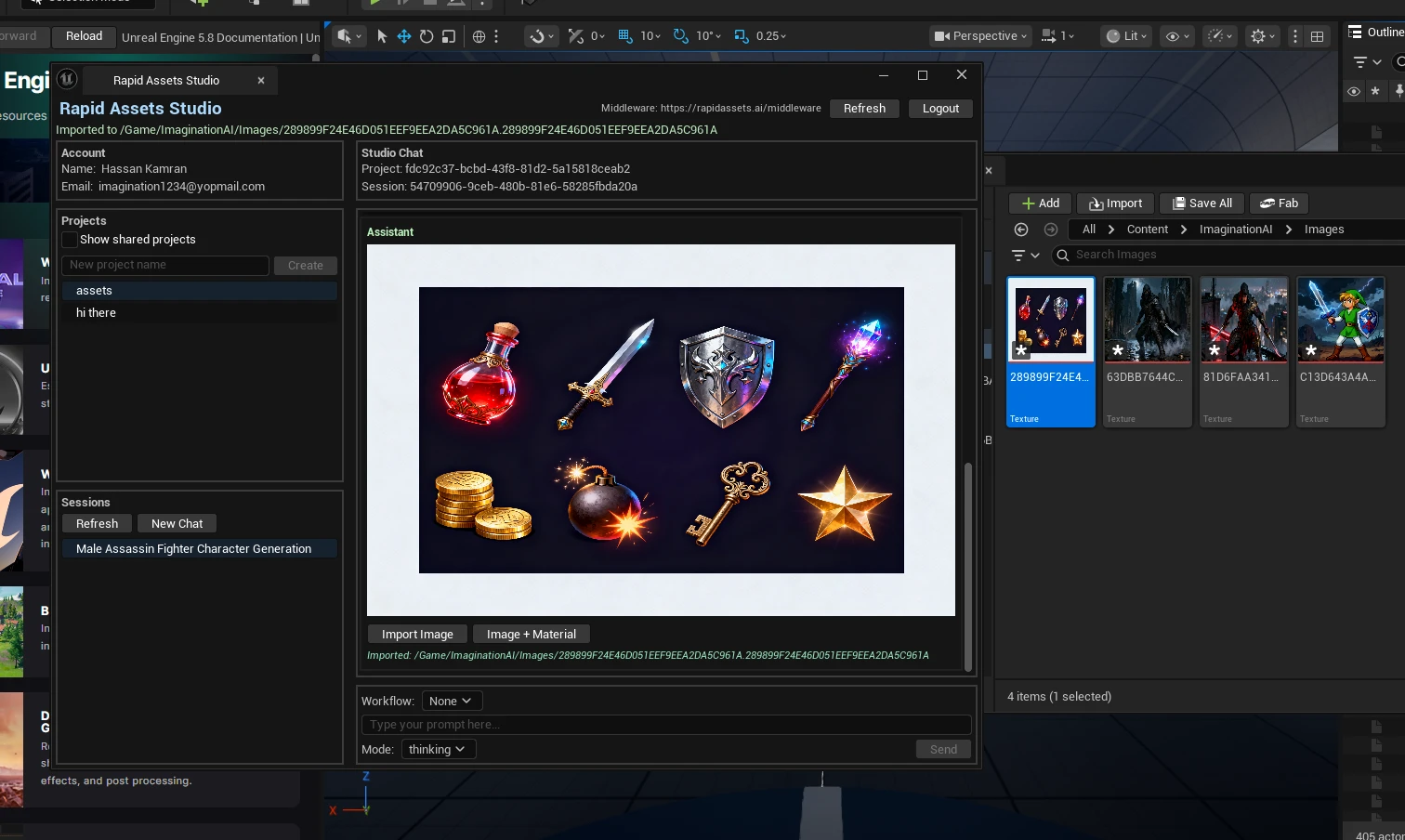
A full game-item icon set: UI-ready props generated in one pass.
08Text-to-3D: game-ready Static Meshes from a prompt
Rapid Assets generates textured 3D models from text and auto-imports them as Static Mesh assets with Materials in Unreal Engine. Describe what you need, click Import Model, and the mesh is in your Content Browser, ready to drag into any level or Blueprint.
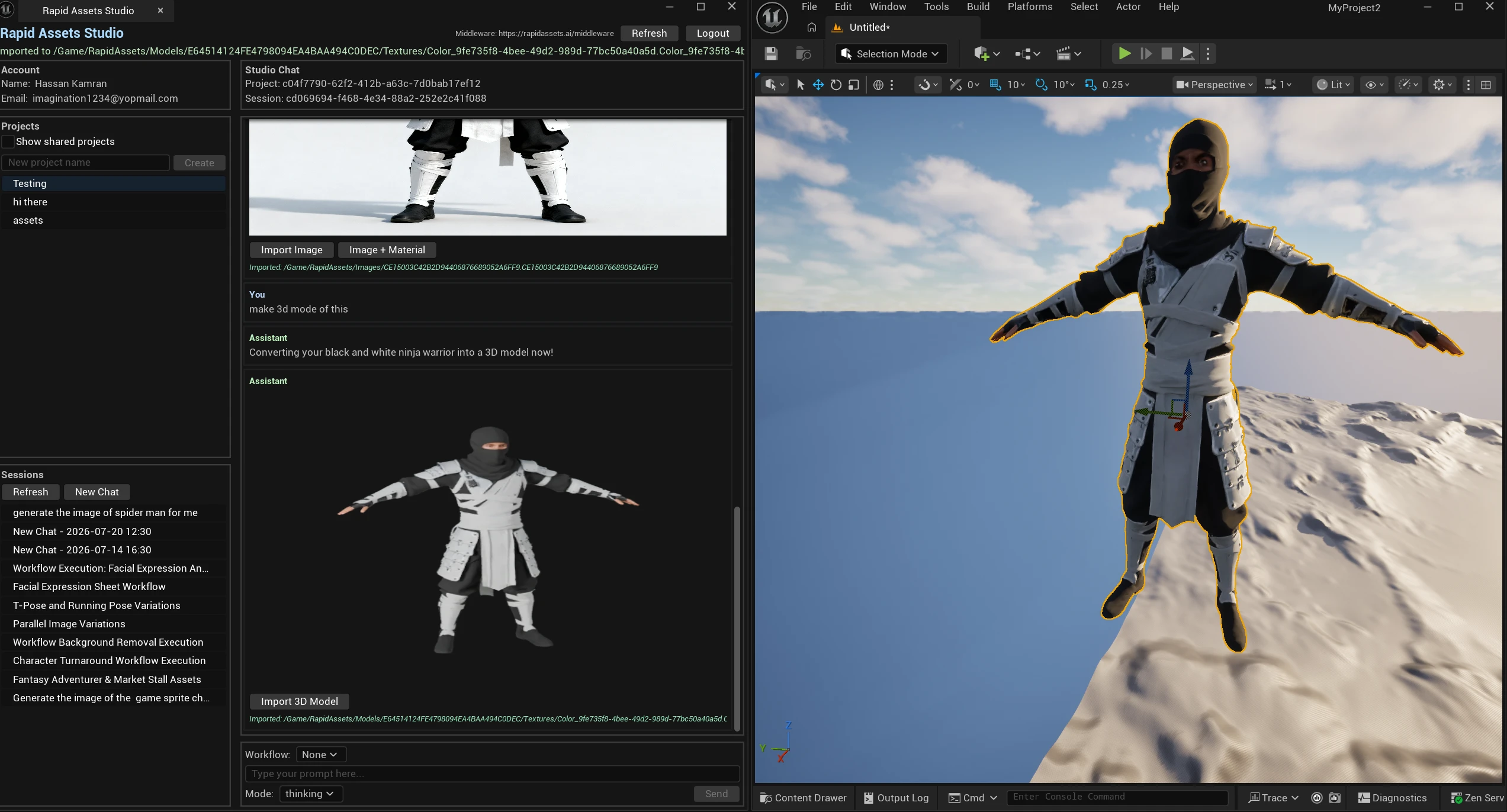
A generated ninja warrior converted to 3D and imported straight into the Unreal Engine viewport.
These are the real, fully-textured models, live in your browser. Click a card, then drag to orbit and scroll to zoom, exactly as they import into Unreal Engine.
Generate models like these in your own project. Free account, no card required.
09Workflow overview: six specialized pipelines
Beyond open-ended generation, Rapid Assets ships with six dedicated workflows built around the asset jobs Unreal Engine developers repeat constantly. Select a workflow, describe your subject, and let the pipeline handle the rest, with no prompt engineering required.
1. Character Turnaround
Problem: modelers need consistent multi-angle reference before creating a Skeletal Mesh. Solution: generate front, side, and back views of any character in one pass. Benefit: a production-ready reference sheet in seconds, perfect for modeling and style locking.
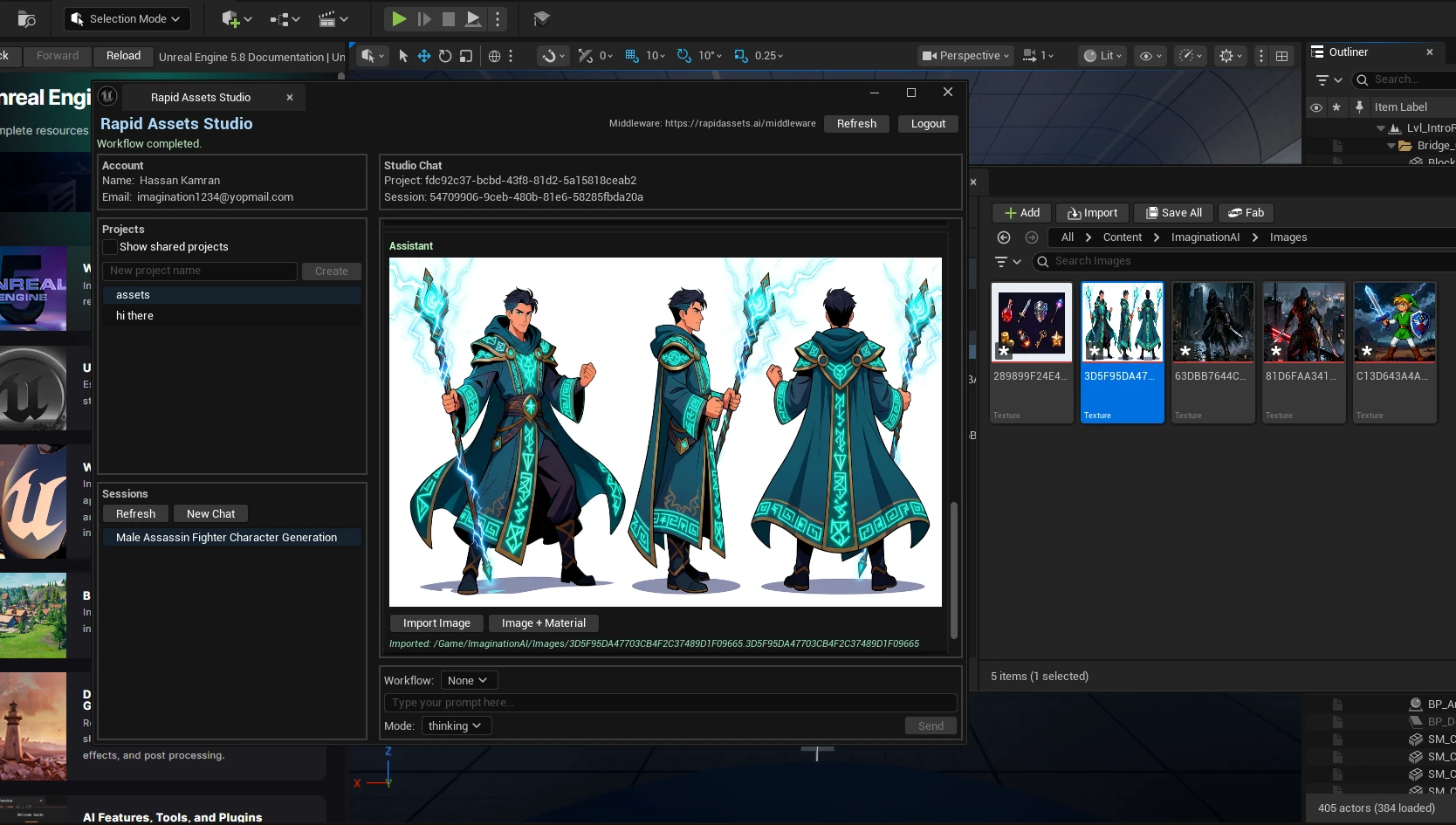
Mage turnaround: three angles generated inside the plugin, ready for Skeletal Mesh reference.
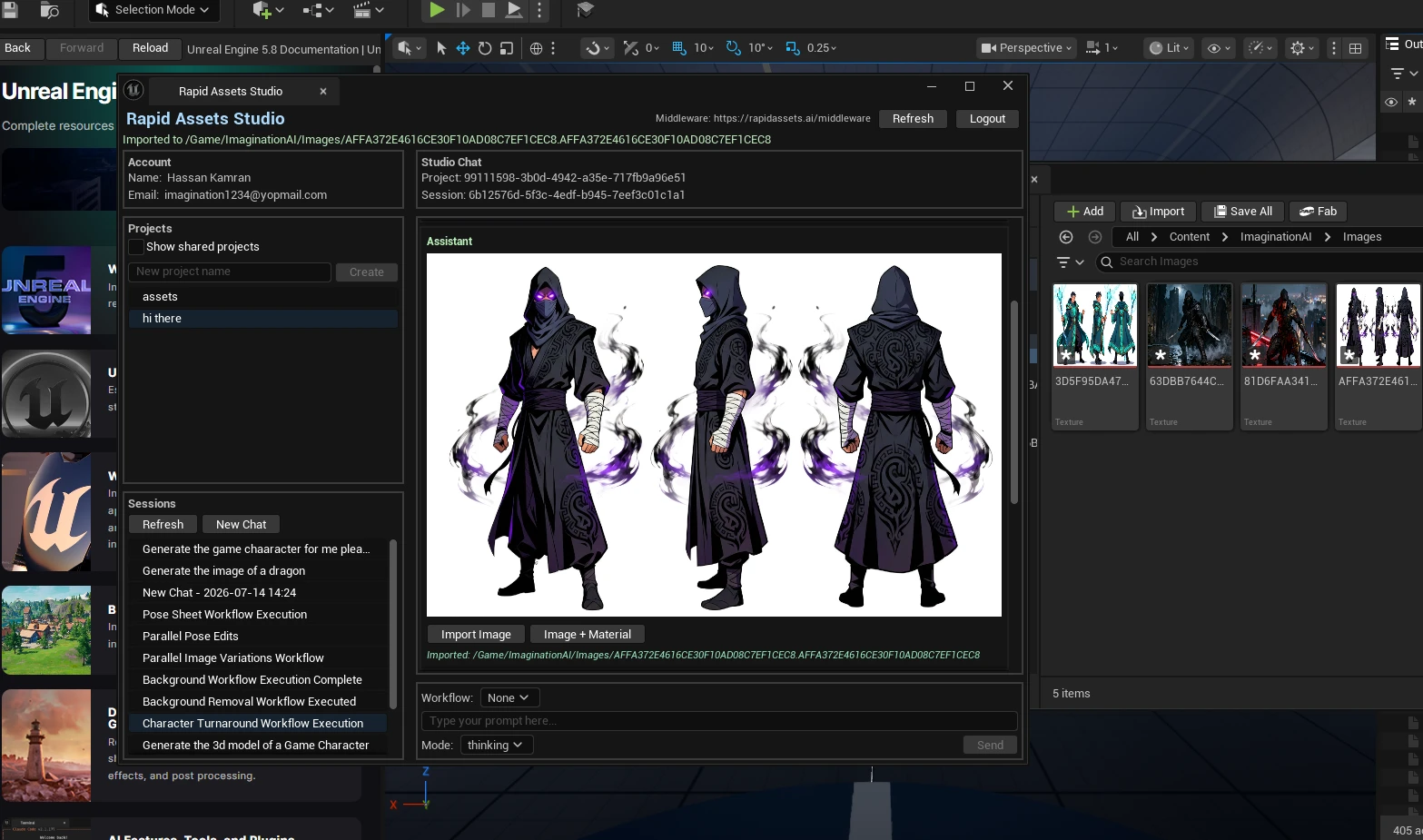
Dark knight 360° turnaround, imported as a Texture2D directly into the Content Browser.
2. Background Removal
Problem: UI widgets, Sprite assets, and Material masks need clean transparent cut-outs, which normally means manual masking. Solution: the Background Removal workflow strips backgrounds automatically. Benefit: drop-in art with perfect alpha for Unreal Engine UI and 2D scenes.
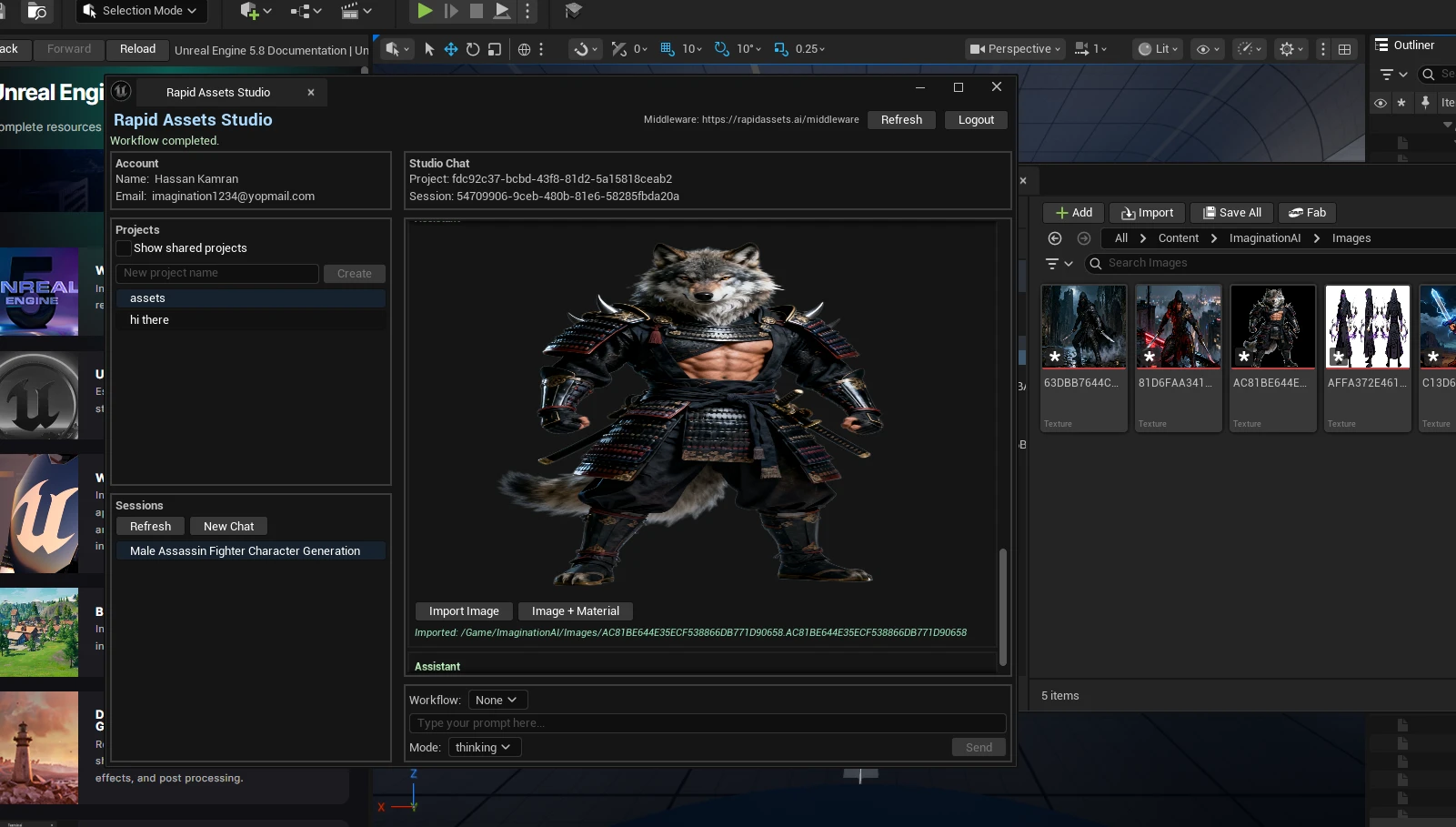
Clean transparent cut-out, ready for Unreal Engine UI or Sprite assets.
3. Image Variations
Problem: a single concept is rarely enough. You need options to compare and to fill out a set. Solution: Image Variations generates multiple stylistic alternatives from one source image. Benefit: explore art directions fast and build cohesive texture sets for your levels.
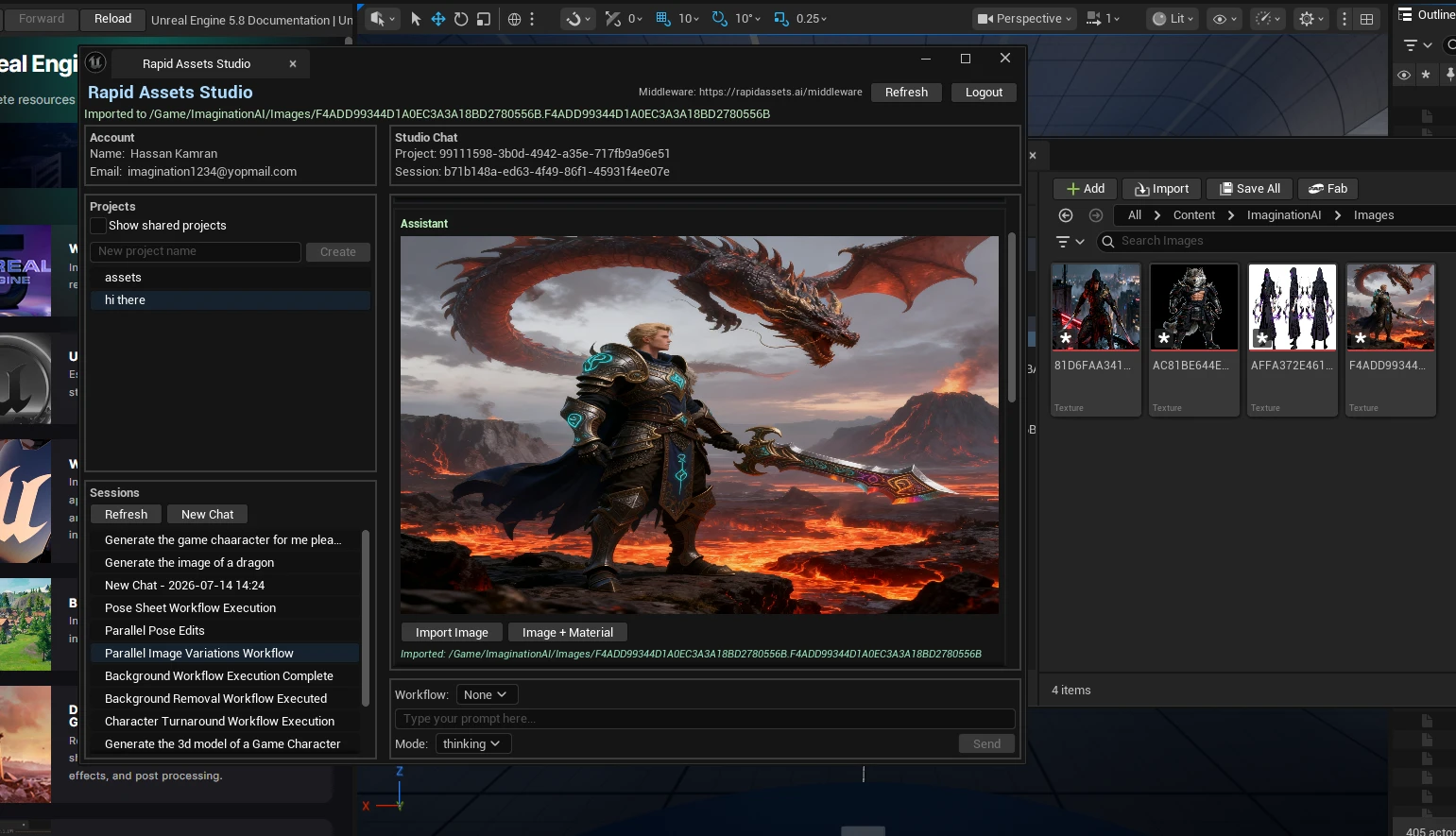
Variation 1: Warrior character in a mysterious forest environment.
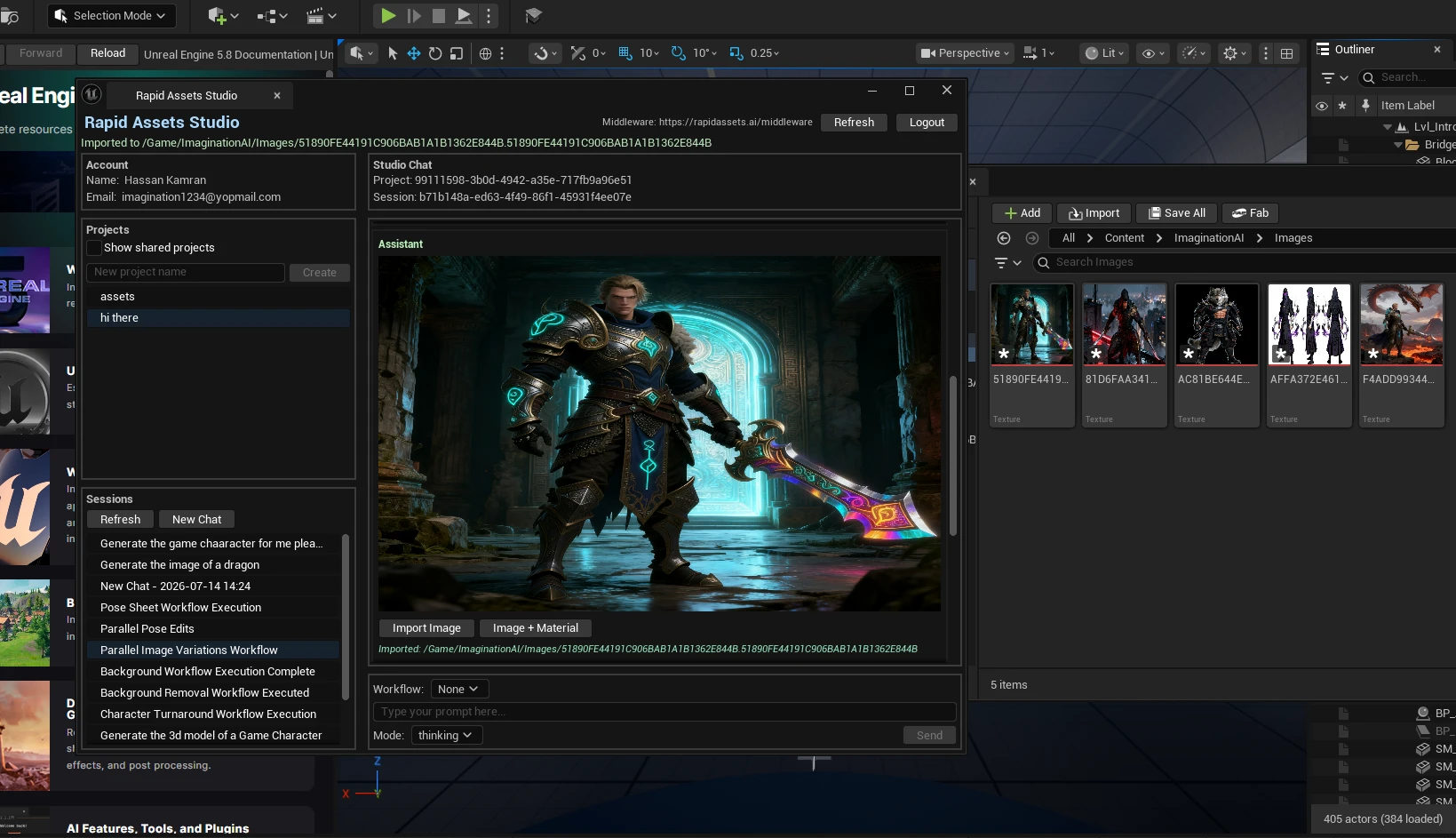
Variation 2: same character, completely different style and setting.
4. Pose Variations
Problem: animation reference sheets and Sequencer key poses need the same character in several body poses. Solution: Pose Variations generates a set of distinct poses in one pass. Benefit: build pose sets without commissioning each pose individually.
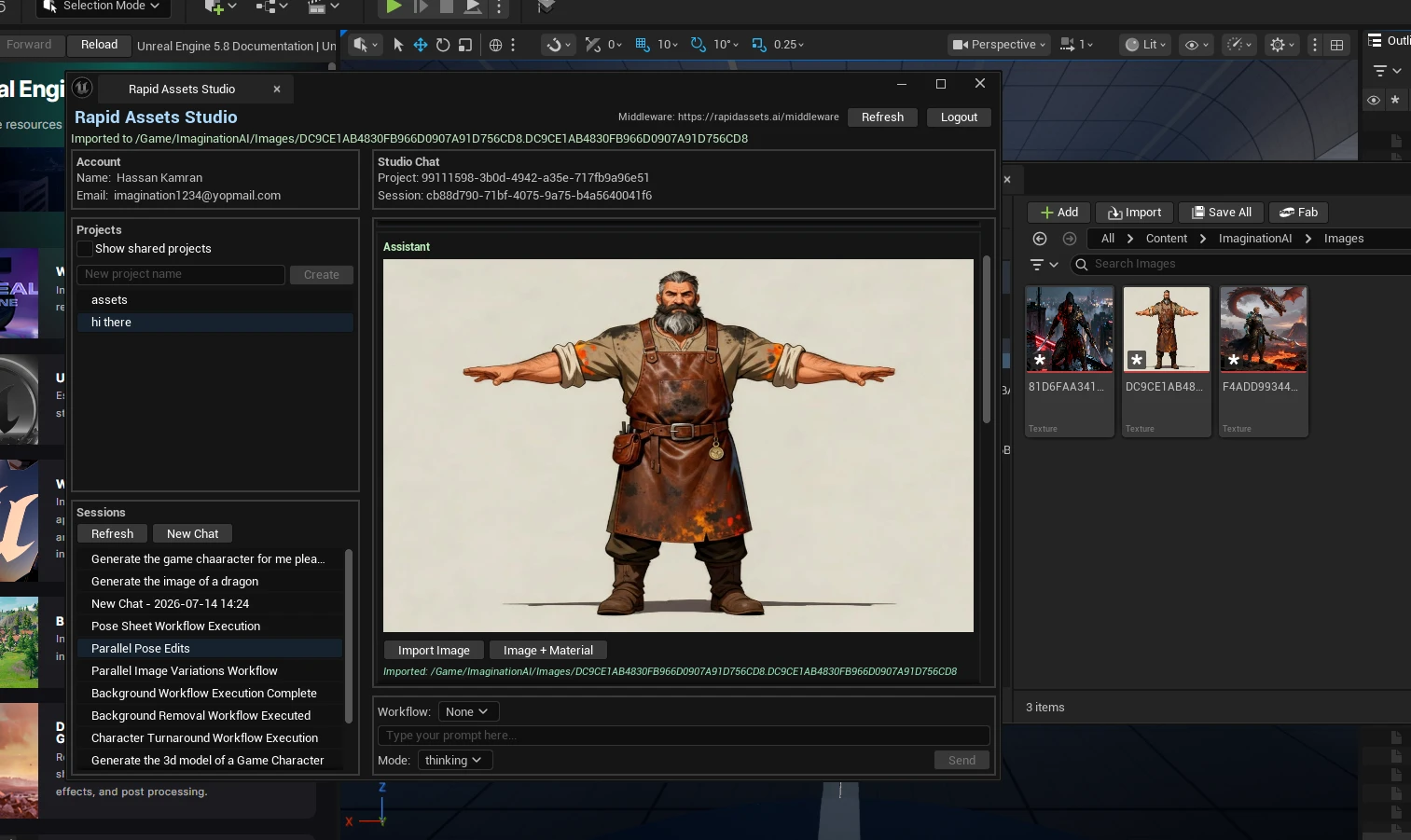
Pose Variation 1: T-pose generated with the Pose Variations workflow visible.
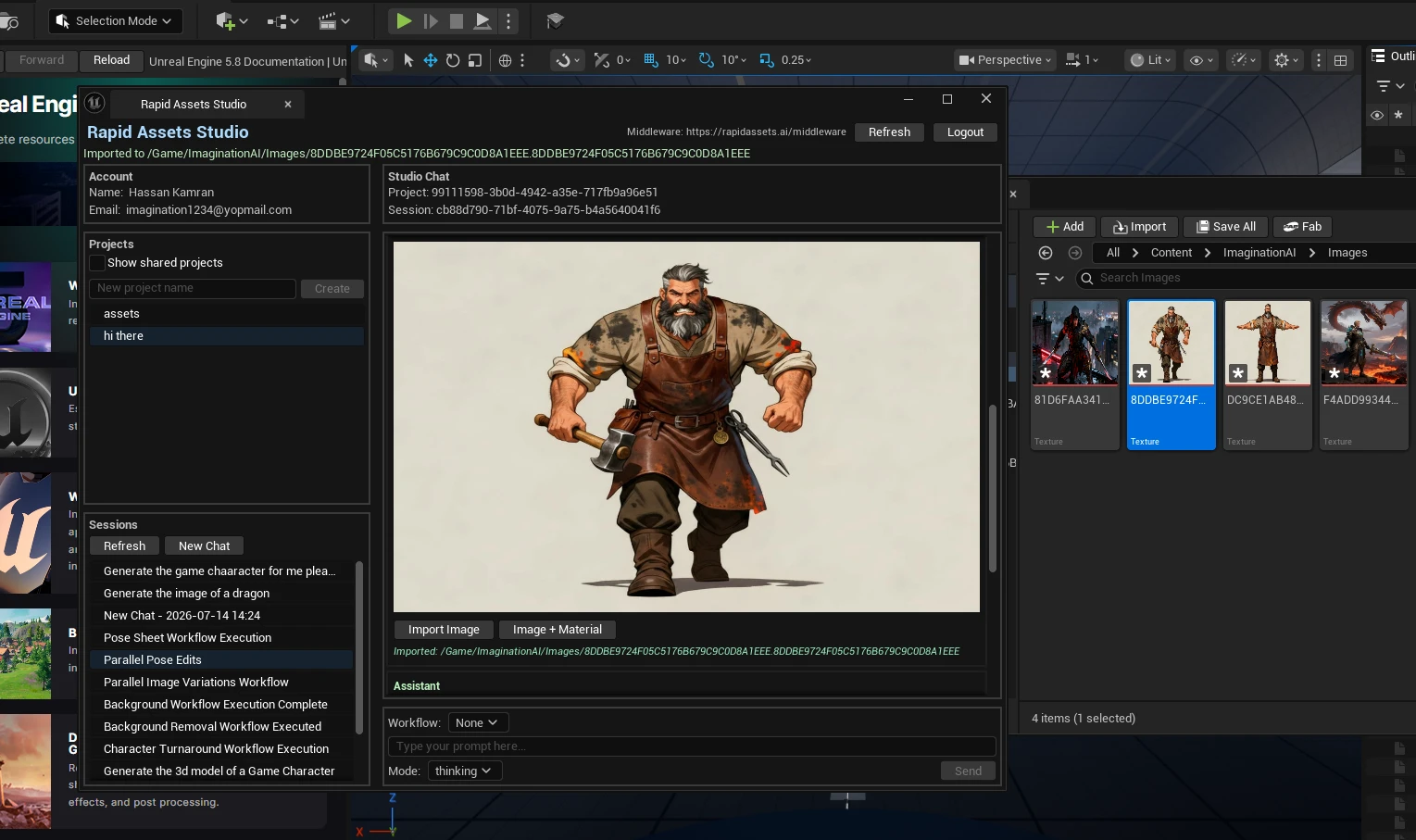
Pose Variation 2: same character, dynamic battle stance, imported to the Content Browser.
5. Facial Pose Sheet
Problem: expressive characters need an emotion sheet for dialogue portraits, MetaHuman blend shape reference, and UI icons. Solution: the Facial Pose Sheet workflow produces a grid of facial expressions automatically. Benefit: a complete emotion set generated in one step.
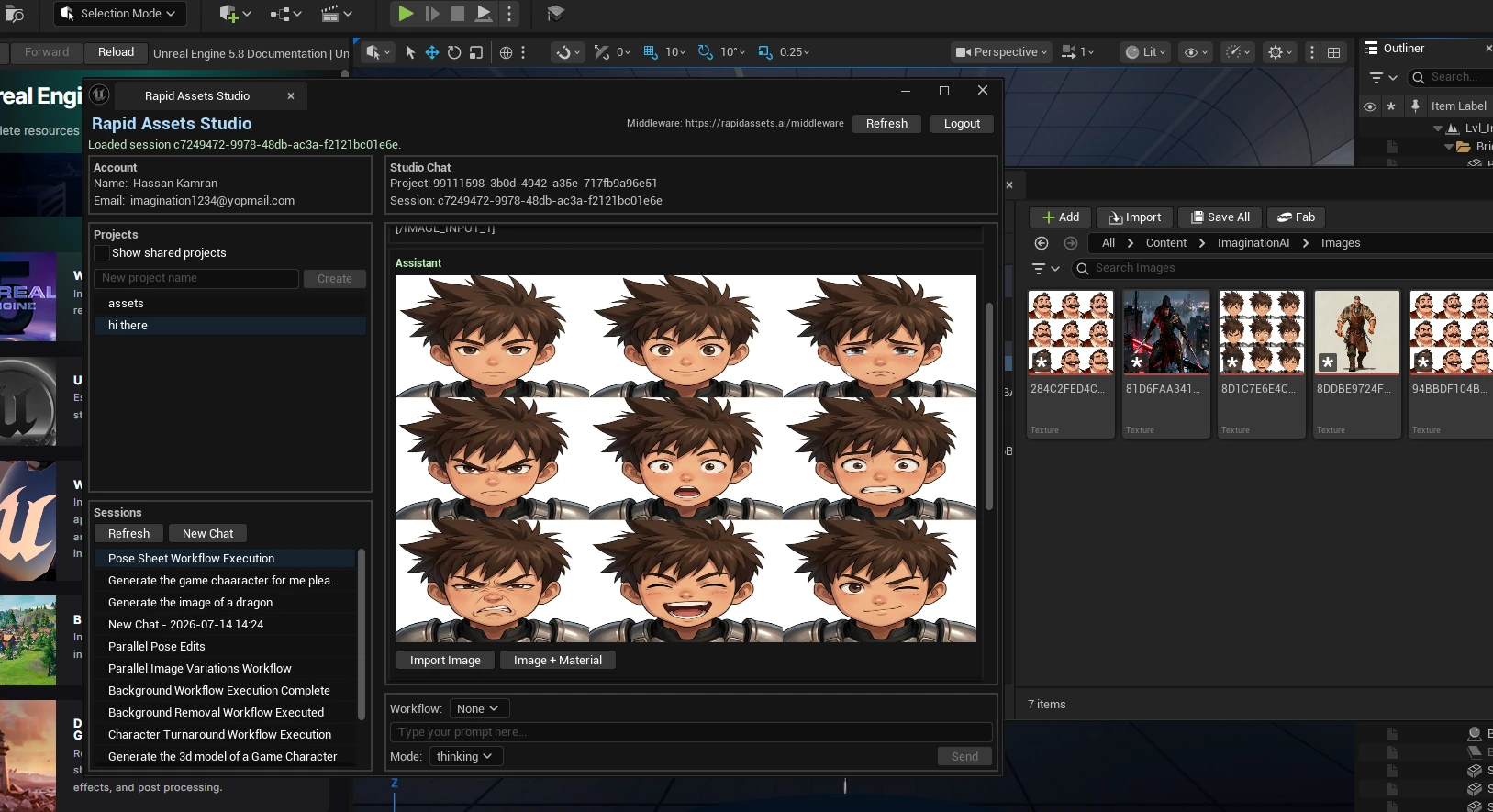
Dwarf character: 9 expressions generated in one pass with the Facial Pose Sheet workflow.
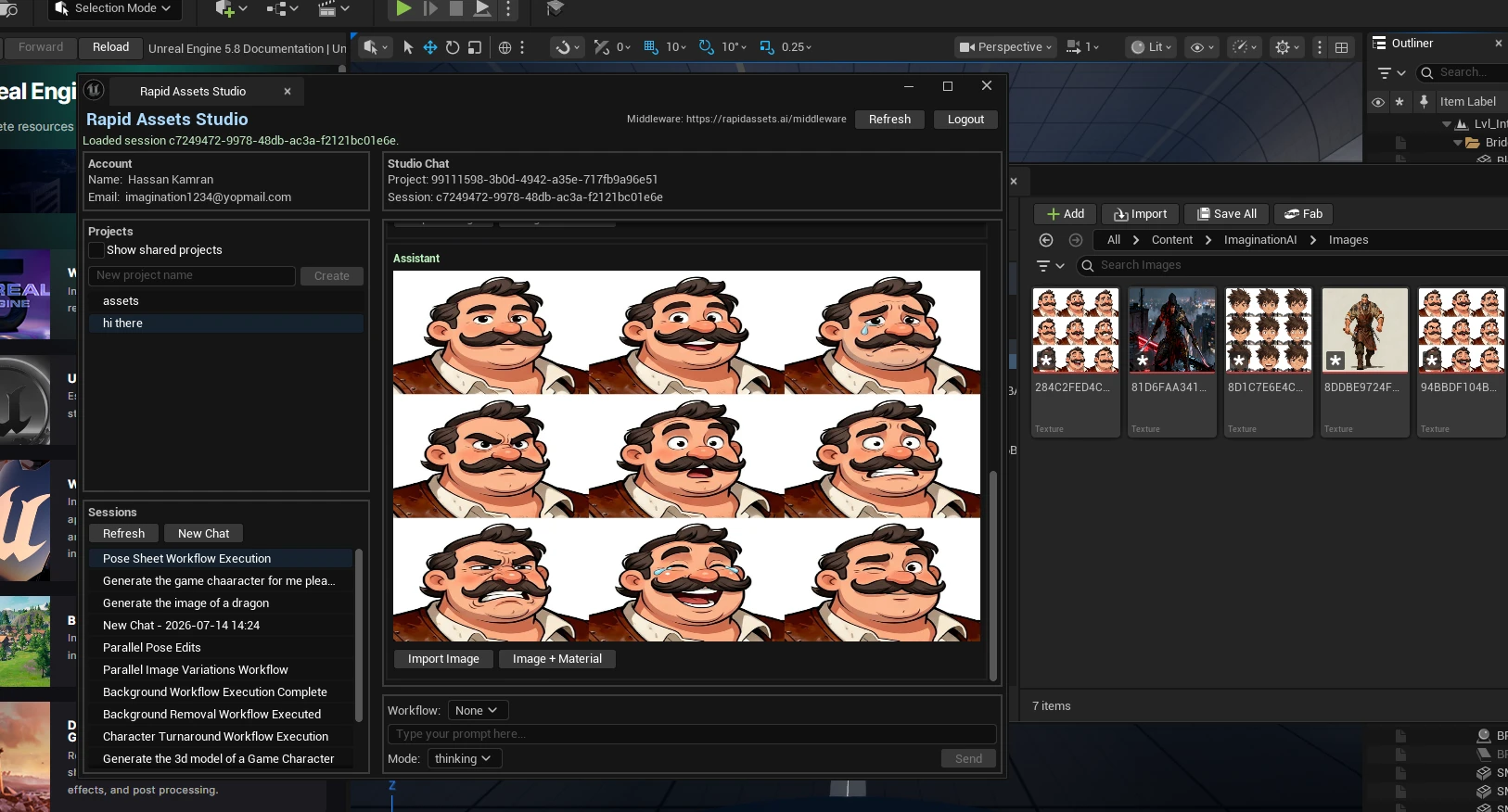
Game character facial sheet, ready for Unreal Engine dialogue portraits and UI.
6. Pose Transfer
Problem: you have a character you like but need them in a specific pose for a scene, promo, or animation key. Solution: Pose Transfer applies a target pose while preserving identity and style. Benefit: reuse one character design across many poses, great for animation key references before rigging in Unreal.
10Who uses it: real examples
Here's how Rapid Assets fits into real Unreal Engine production at three very different scales.
Indie Unreal game development
Open world / AAA production
Mobile Unreal game
Also a fit for
Technical Artists
Automate repetitive jobs (cut-outs, turnarounds, expression sheets) and spend your time on high-value shader and VFX work.
Blueprint Developers
Generate all the visual assets your Blueprint-driven game needs without touching external tools. No C++ required.
Marketing for Publishers
Generate banners, promo imagery, and consistent preview art for your existing Fab and Marketplace listings.
The plugin is one part of the full platform. Everything it does, and more, is also available on the web at rapidassets.ai, and your projects sync across both.
11Troubleshooting
The most common setup issues and their fixes:
Studio doesn't appear under the Window menu
Confirm the installer placed the plugin in your project's Plugins folder, then check it's enabled under Edit ▸ Plugins and restart the editor. The Studio entry appears under the Rapid Assets section at the bottom of the Window menu.
Unreal asks to rebuild the plugin
The precompiled build targets UE 5.7 on Windows 64-bit. On other engine versions Unreal prompts for a one-time rebuild, which requires Visual Studio with the C++ game development workload installed. Accept the rebuild and the plugin loads normally afterwards.
Sign-in fails or hangs
The Editor needs an internet connection to reach rapidassets.ai. If you're behind a corporate firewall or proxy, make sure rapidassets.ai is allowed. Then close and reopen the Studio panel and try again.
I imported an asset but can't find it
Everything lands under Content/RapidAssets/ in the Content Browser, with Images and Models subfolders. If you use Content Browser filters, clear them; imported Static Meshes and Texture2D assets are named after the generation.
12Frequently asked questions
Yes, completely free to download and install. You only need a free Rapid Assets account to sign in and start generating. There's no purchase, no trial timer, and no paywall on the plugin itself.
Download the package from rapidassets.ai, run the included installer, browse to your project root (the folder with the .uproject file), and click Install Plugin. Then open your project and go to Window ▸ Studio. No C++ required; Blueprint-only projects are fully supported.
Unreal Engine 5.0 and above. The precompiled build targets UE 5.7 on Windows 64-bit; on other versions Unreal may prompt for a one-time rebuild, which needs Visual Studio with the C++ game development workload.
Into Content/RapidAssets/ in your Content Browser, with Images and Models subfolders. Generated Static Meshes are Nanite-compatible and textures import ready to use in any Material or Material Instance.
Yes, assets are intended for commercial and non-commercial use. Review the current licensing terms on rapidassets.ai for the exact, up-to-date conditions.
You might also be interested in
More guides and tools from the Rapid Assets pipeline.
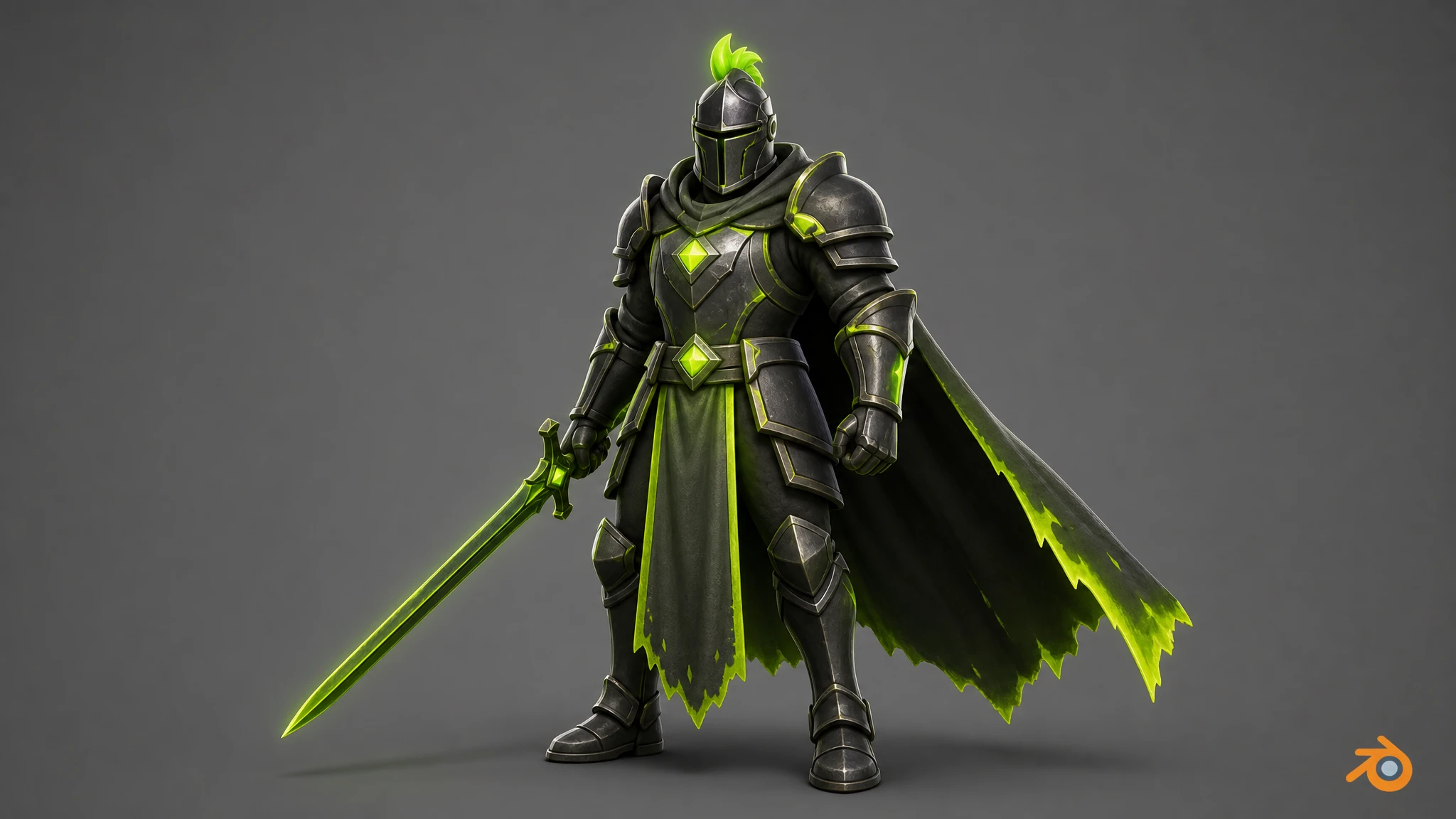
Rapid Assets Blender Plugin: Free AI Asset Generator
Rapid Assets is a free Blender plugin that generates production-ready images and 3D models from text and imports them straight into your Blender scene.
Read more →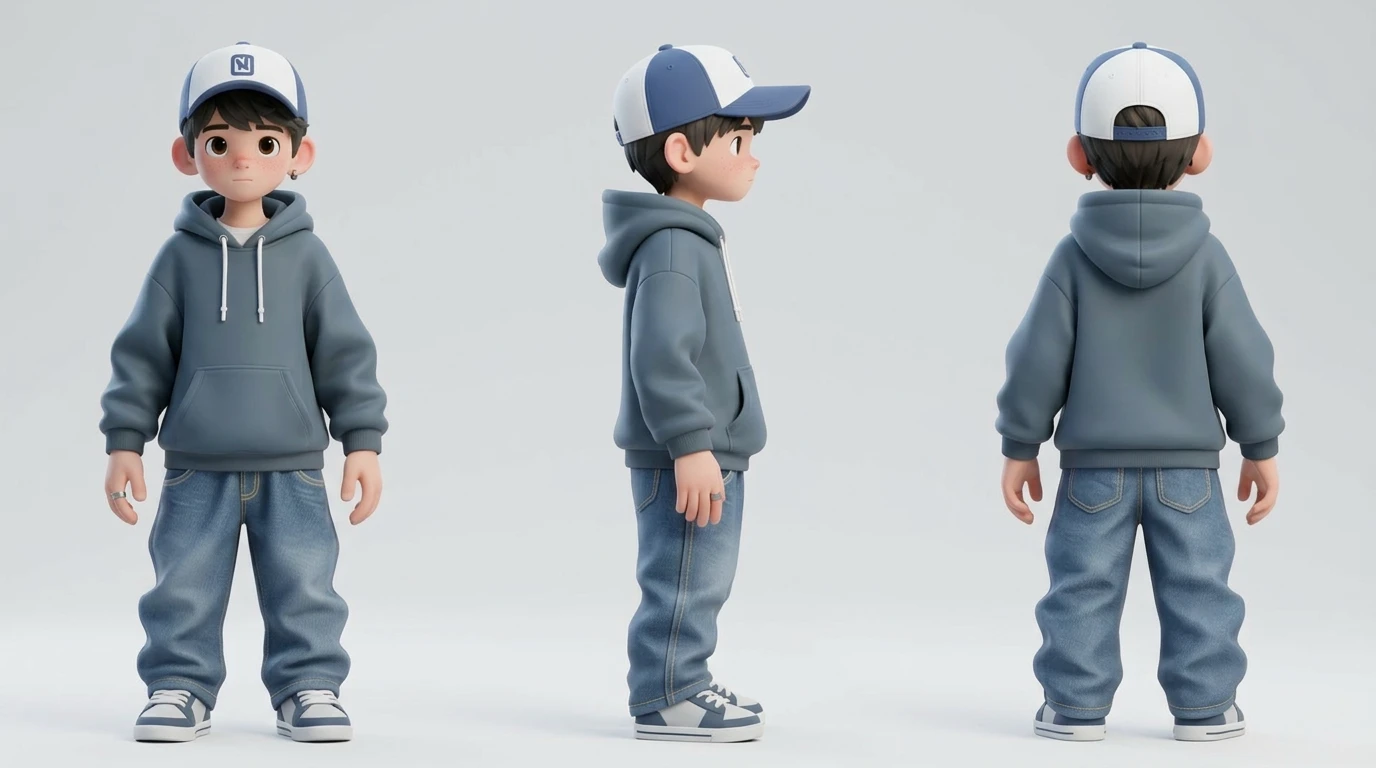
Character Turnaround Sheet Generator
Create a professional character turnaround sheet in seconds with Rapid Assets' AI. Generate consistent front, side & back views for characters, objects, animals and any image. Free to start.
Read more →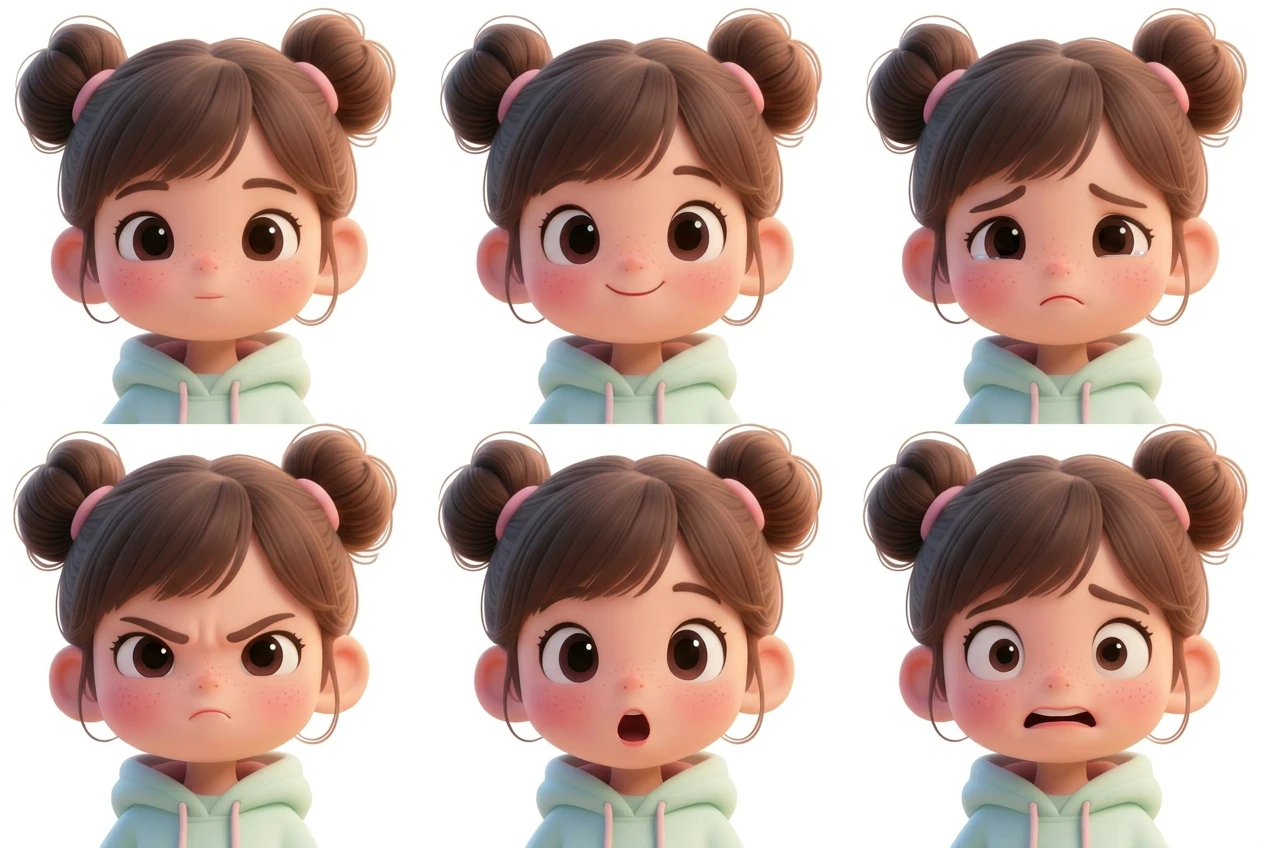
AI Facial Expression Sheet Generator
Generate a complete facial expression sheet with AI — up to 9 emotions per sheet including happy, sad, angry, surprised and more. Perfect for game characters, anime, animals and anthropomorphic designs. Free to start.
Read more →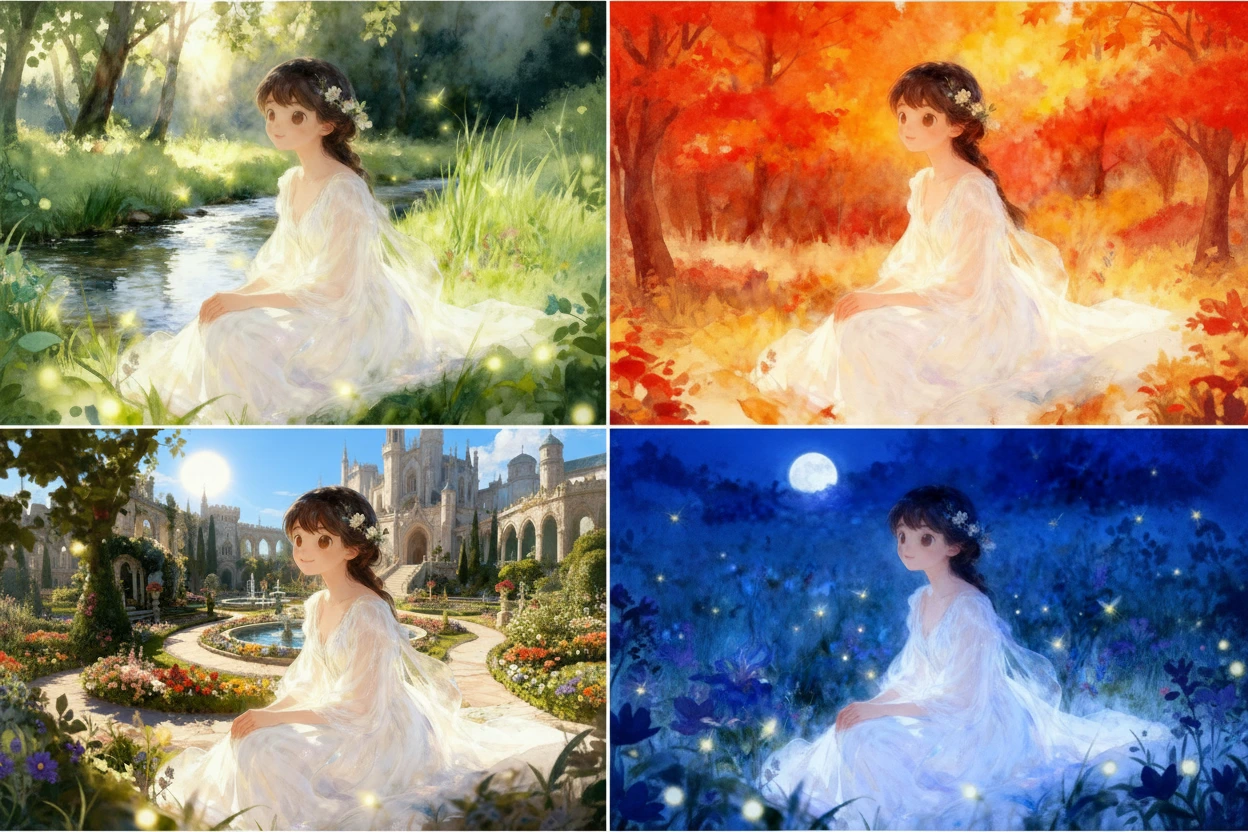
Image Variation Generator
Generate unlimited AI image variations from any image — change colors, outfits, backgrounds, art style or time of day while keeping the subject identical. Free to start.
Read more →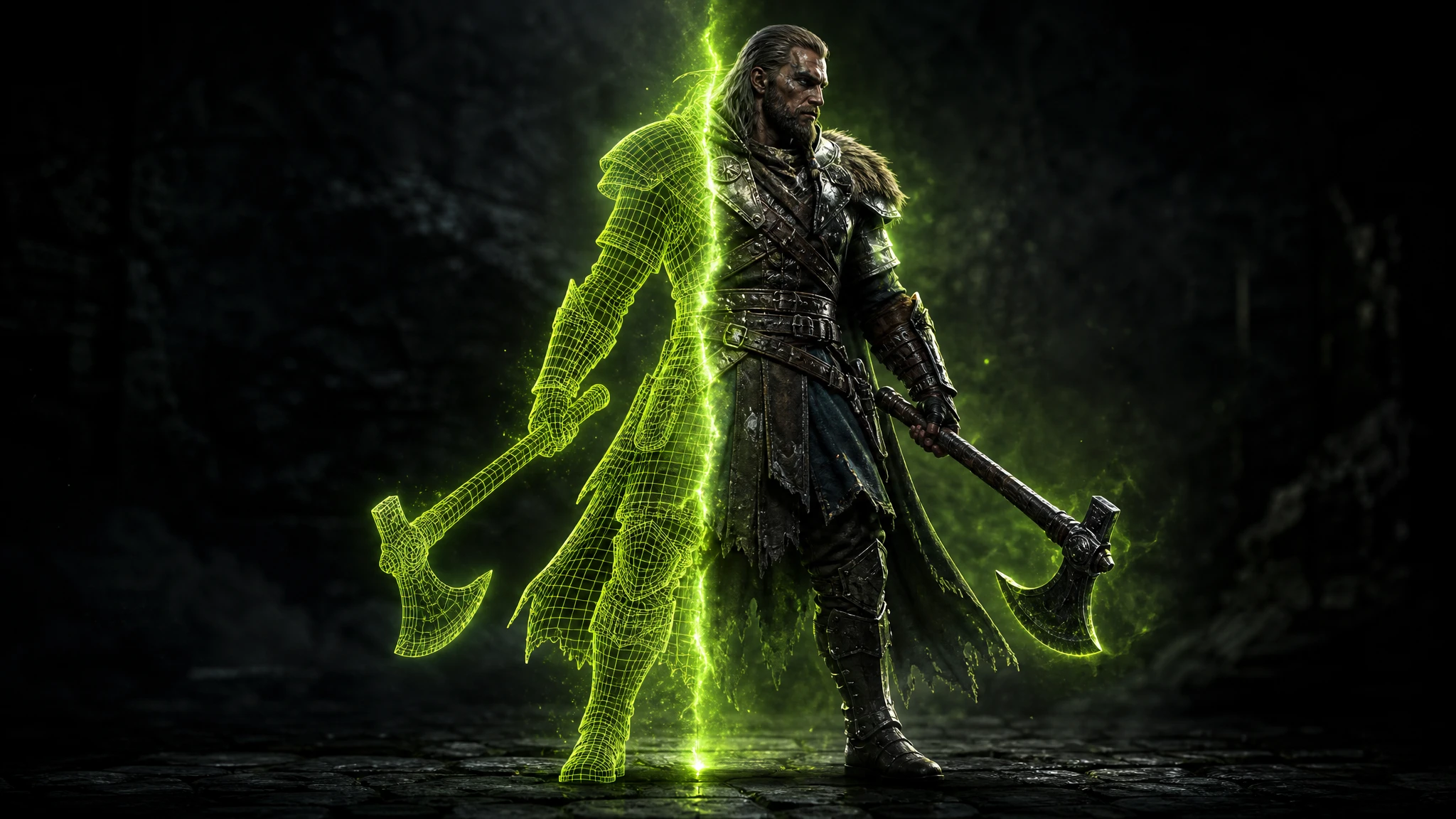
Free 3D Model Generator
Free 3D model generation — create game-ready 3D models from a text prompt or an image in seconds. Characters, creatures, props and weapons with PBR textures, quad or triangular topology, GLB/FBX export.
Read more →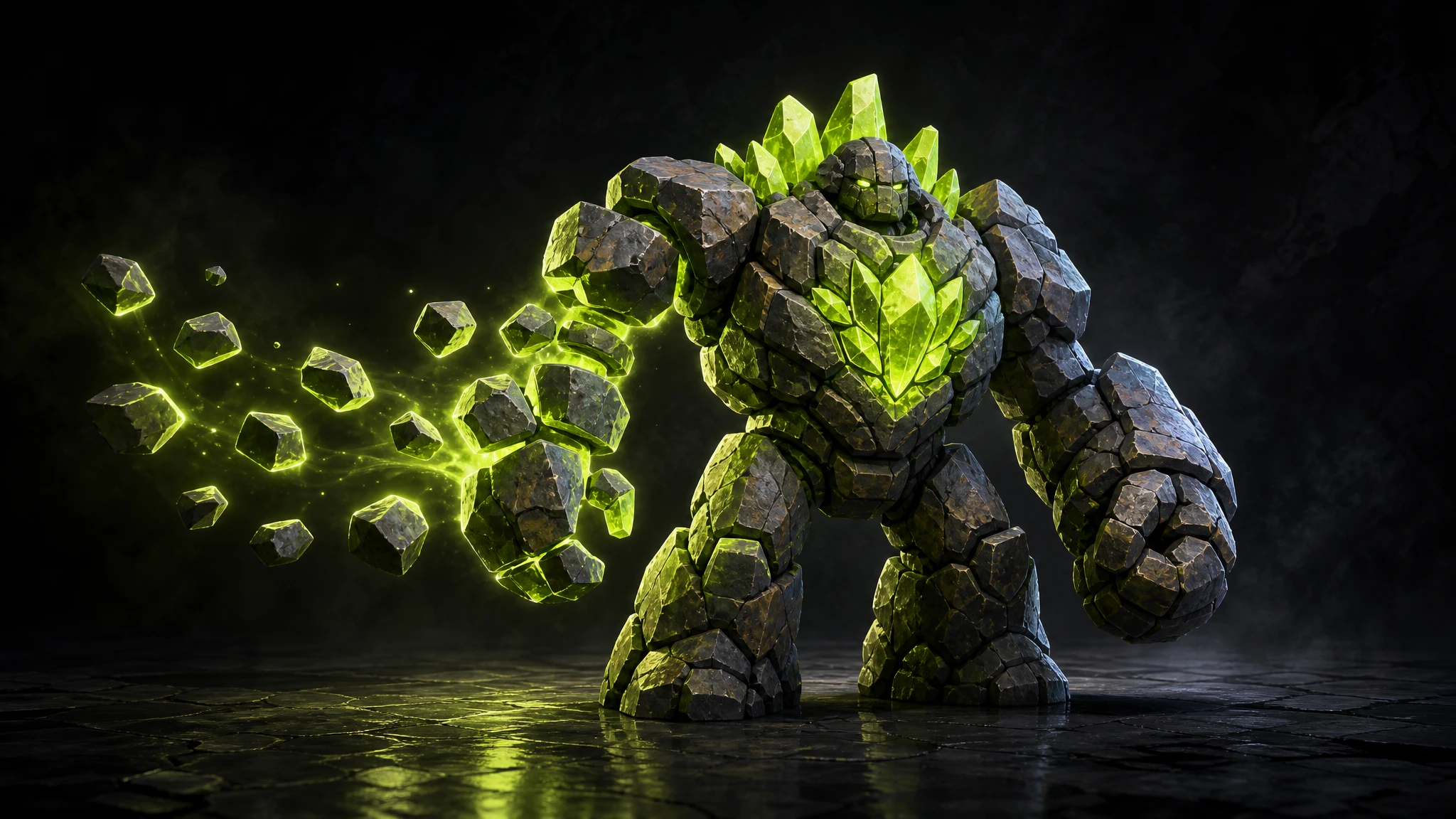
Free Text to 3D Generator
Free text to 3D generation — type a prompt and get a production-ready 3D model in seconds. Characters, creatures, props and weapons with PBR textures, GLB/FBX export. No credit card.
Read more →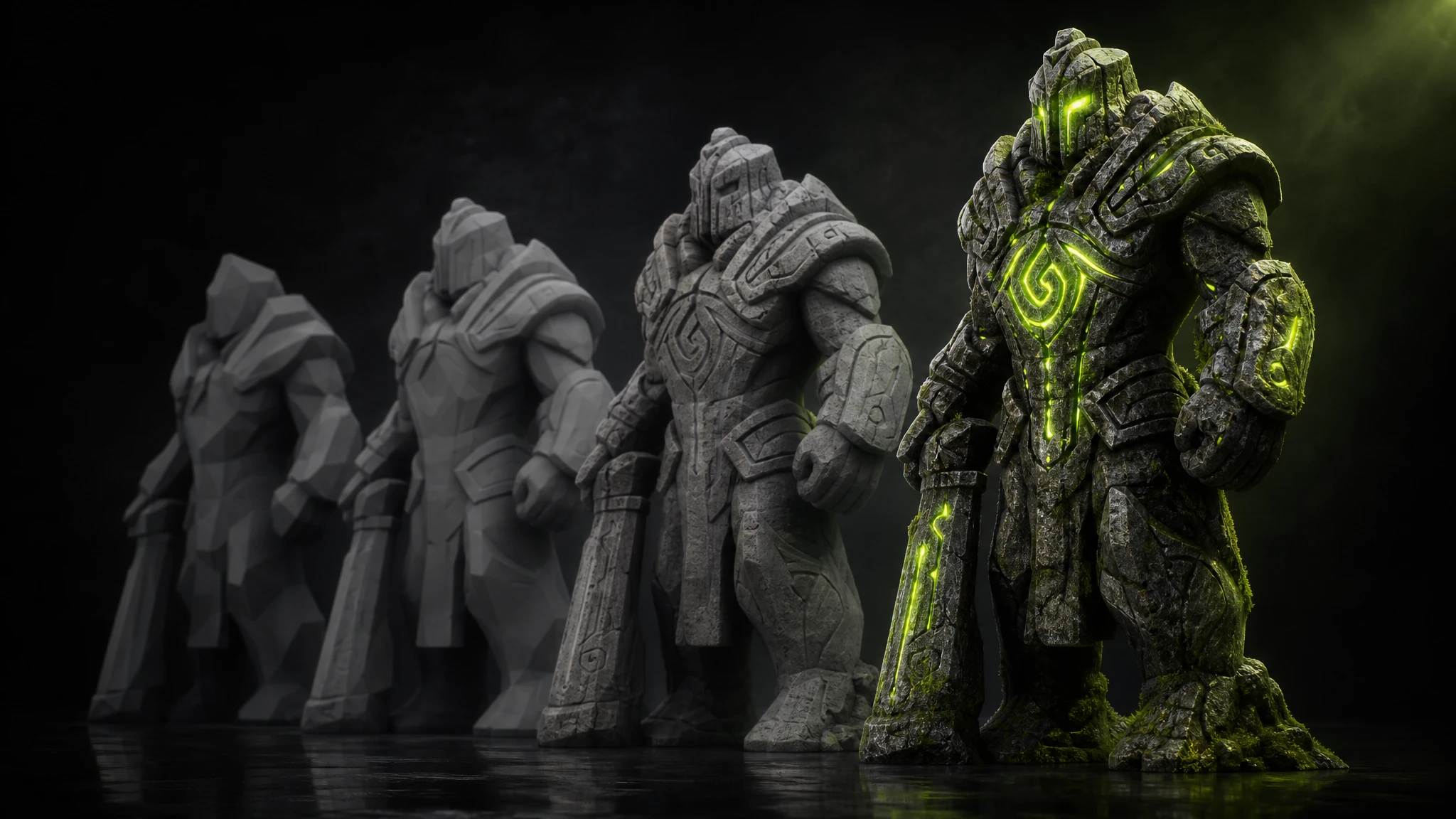
Free Low Poly 3D Model Generator
Learn how to create low poly 3D models with AI — generate a model, then reduce it to a game-ready low poly mesh (under 20K faces). Free to start, GLB & FBX export, quad or triangular topology.
Read more →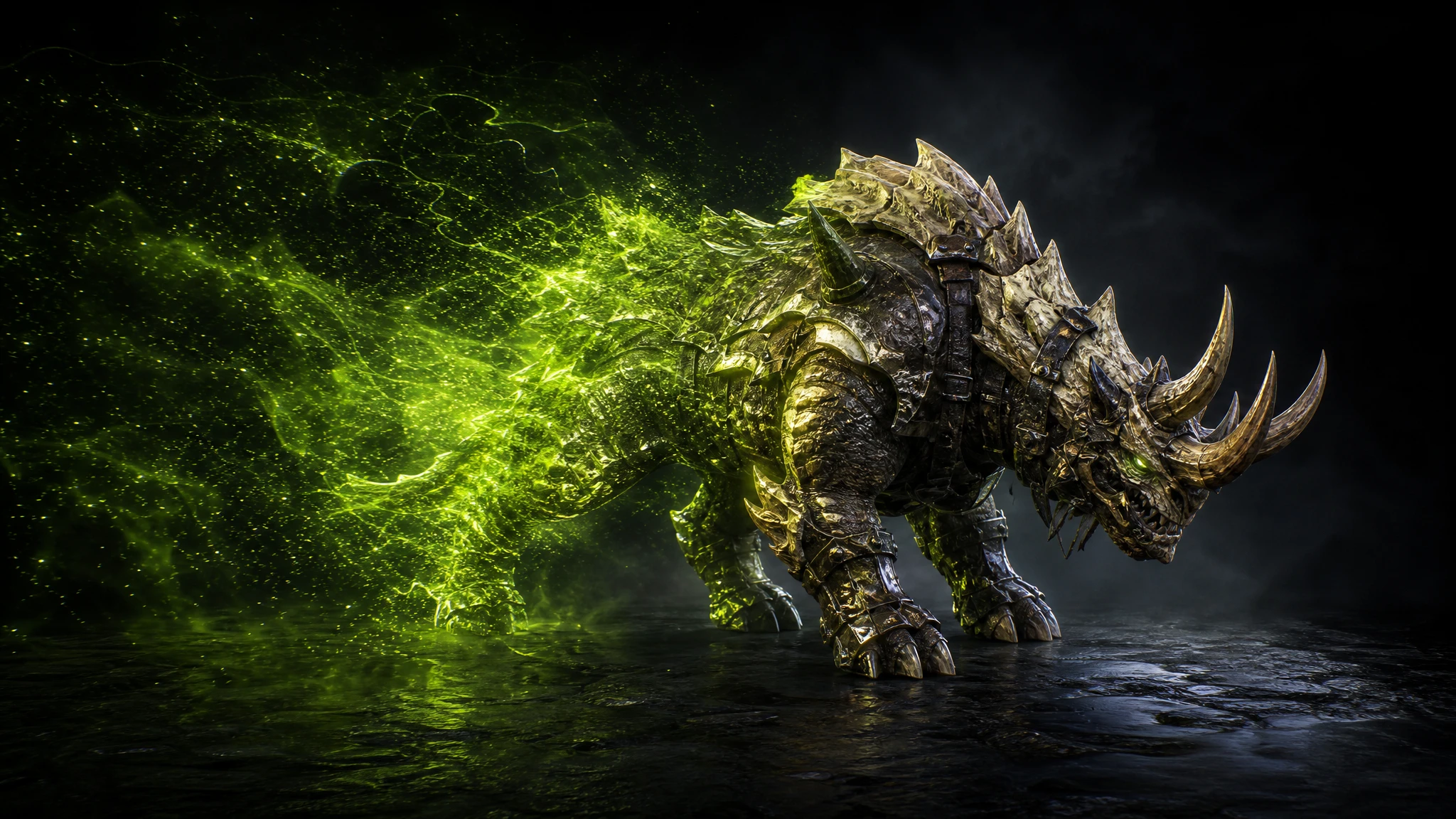
Free Mythical Creature & Monster Generator
Free mythical creature and monster generator — describe a dragon, hydra, lich or eldritch horror and get concept art or a game-ready 3D creature in seconds. PBR textures, quad topology, GLB/FBX export.
Read more →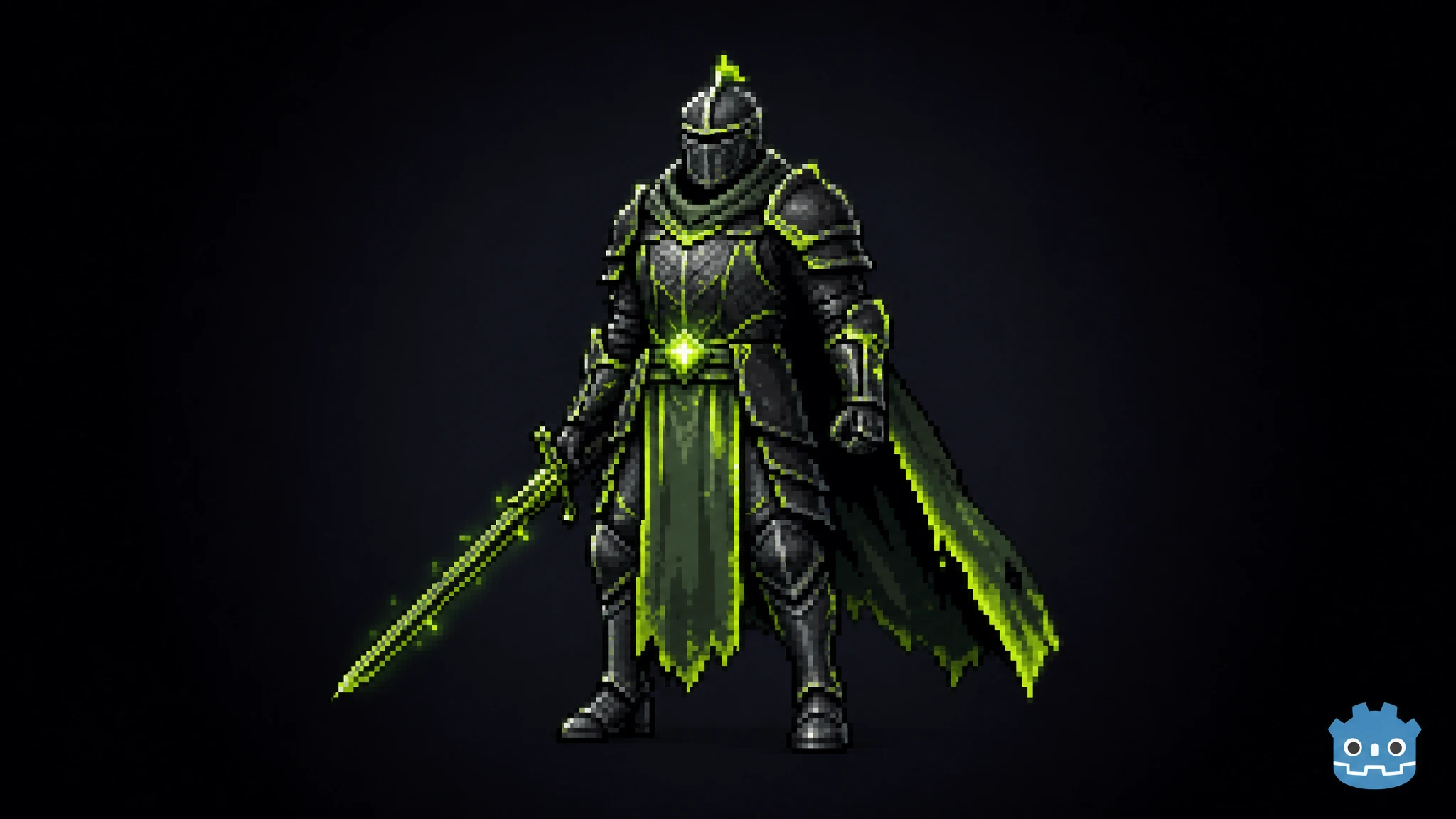
Rapid Assets Godot Plugin: Free AI Asset Generator
Rapid Assets is a free Godot plugin that generates production-ready images and 3D models from text and imports them straight into your project FileSystem.
Read more →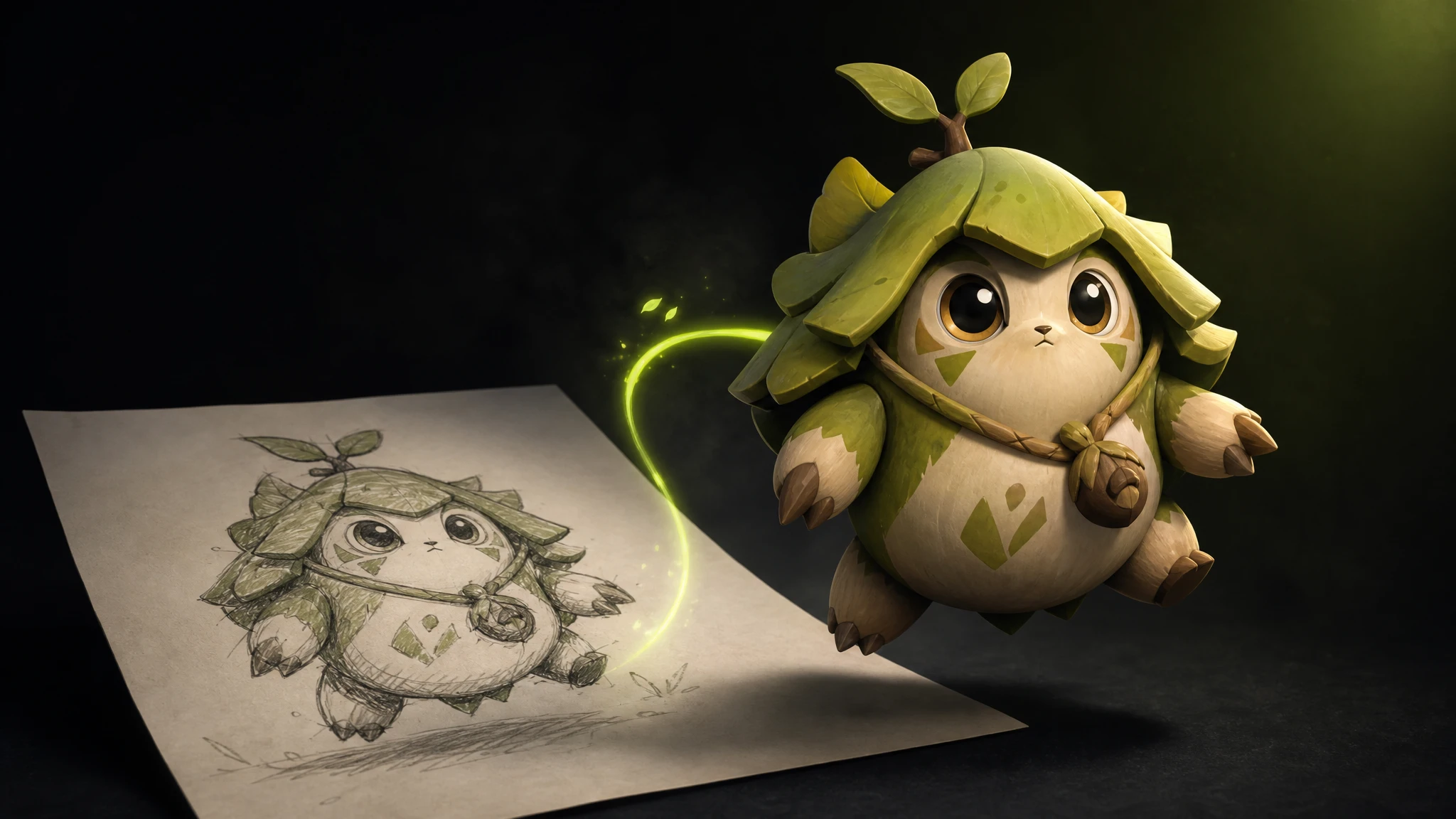
Free Image to 3D Generator
Free image to 3D generation — upload a sketch, concept art or photo and turn it into a fully textured 3D model in seconds. GLB & FBX export, PBR materials, no credit card.
Read more →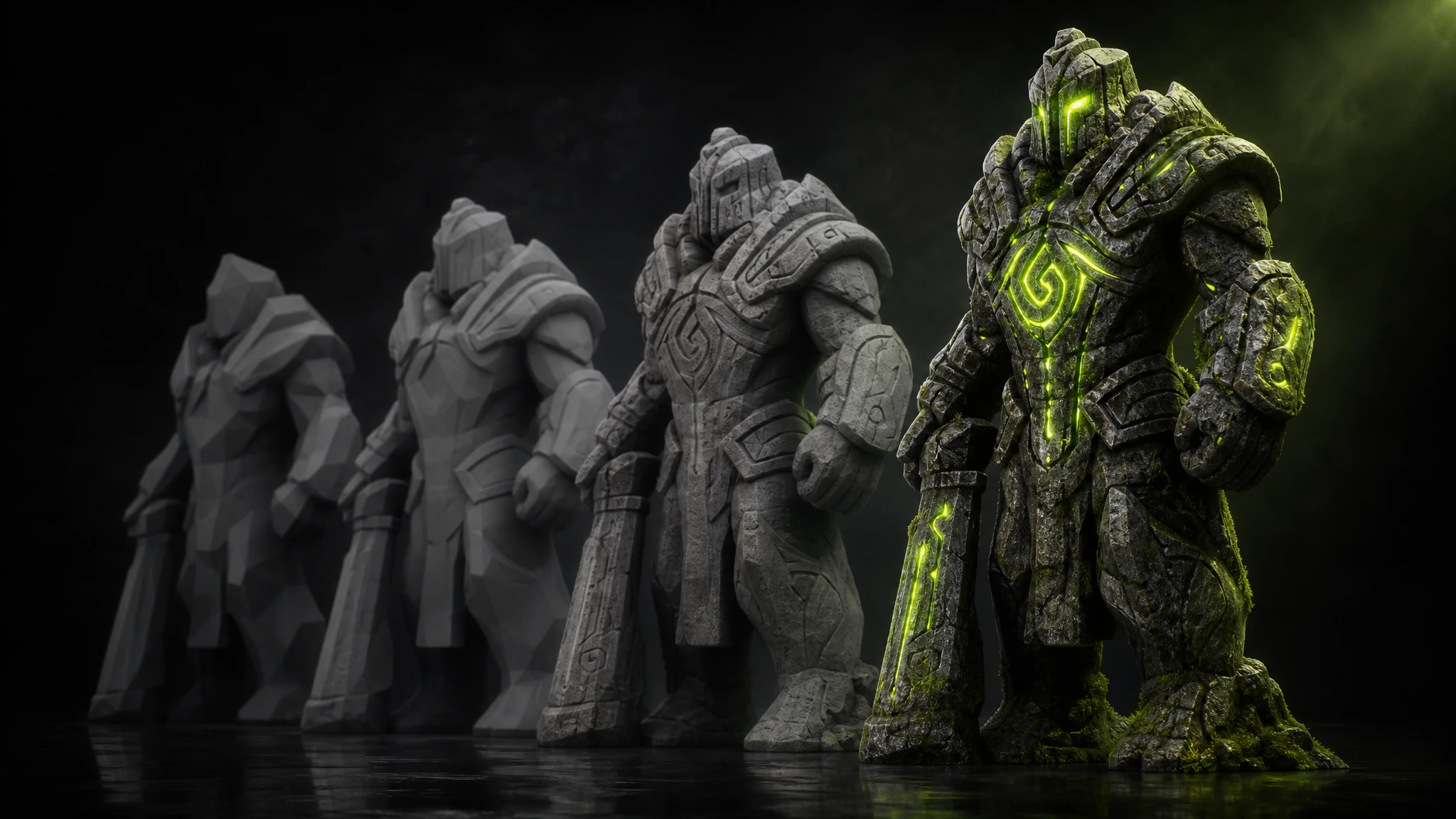
Best Free Meshy Alternatives for 3D Model Generation
The best free Meshy alternatives for AI 3D model generation in 2026. We rank Rapid Assets, Rodin AI, Tripo AI and Sloyd by free tier, pricing, licensing and game-readiness — so you know what you actually get before you pay.
Read more →
Consistent Game Art Style Generator
Lock one art style and generate every character, environment, vehicle and prop in that exact look — pixel art, anime, watercolor, cel-shaded cartoon and more. Perfectly consistent game art, every time. Free to start.
Read more →
Project Sharing on Rapid Assets
Share any Rapid Assets project with a collaborator via a single link. They can browse every generation, download assets, and review your work — all without touching your settings.
Read more →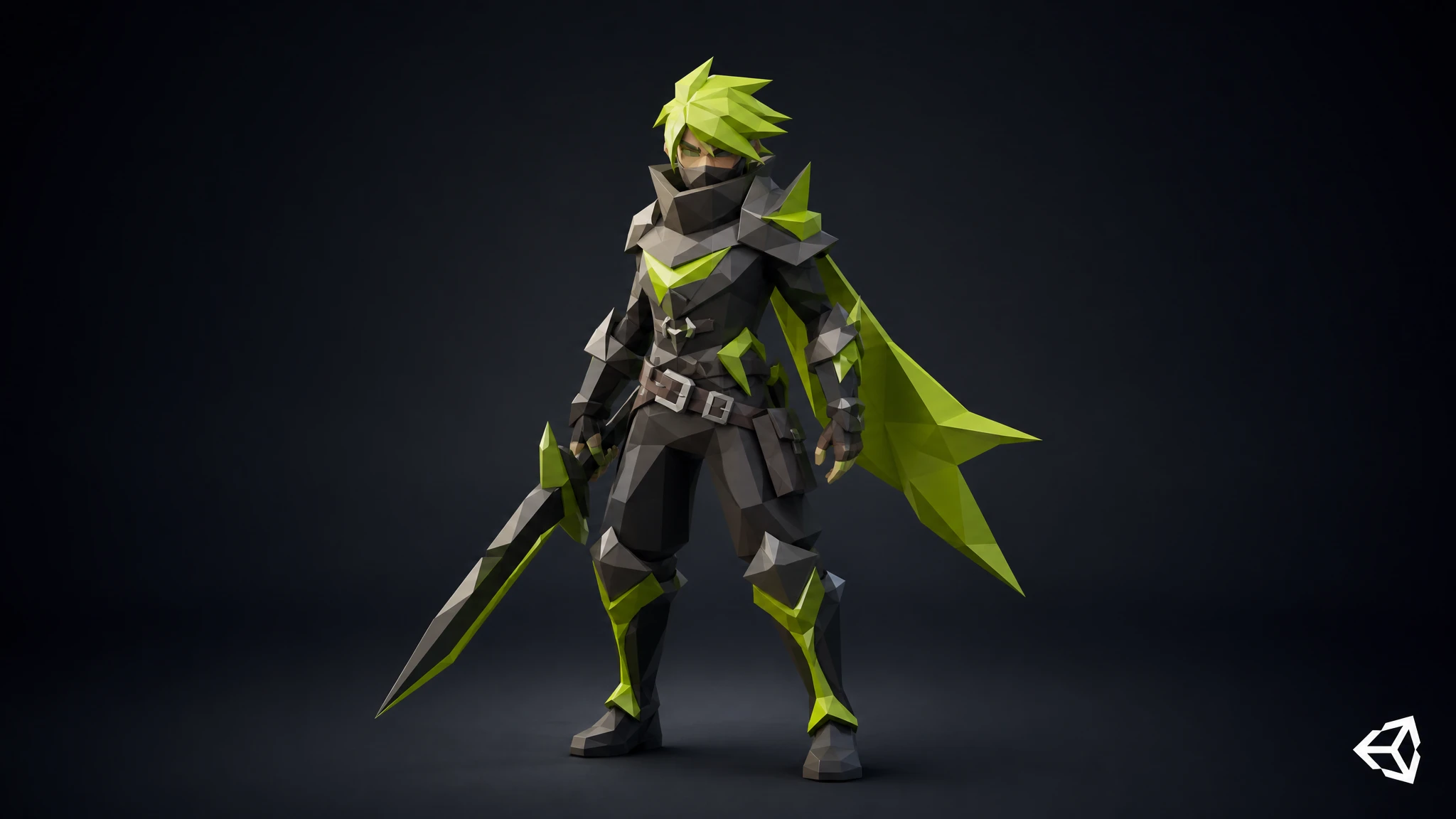
Rapid Assets Unity Plugin: Free AI Asset Generator
Rapid Assets is a free Unity plugin that generates production-ready images and 3D models from text, runs 6 AI workflows, and imports everything straight into your Assets folder. Built for indie devs, studios, and technical artists.
Read more →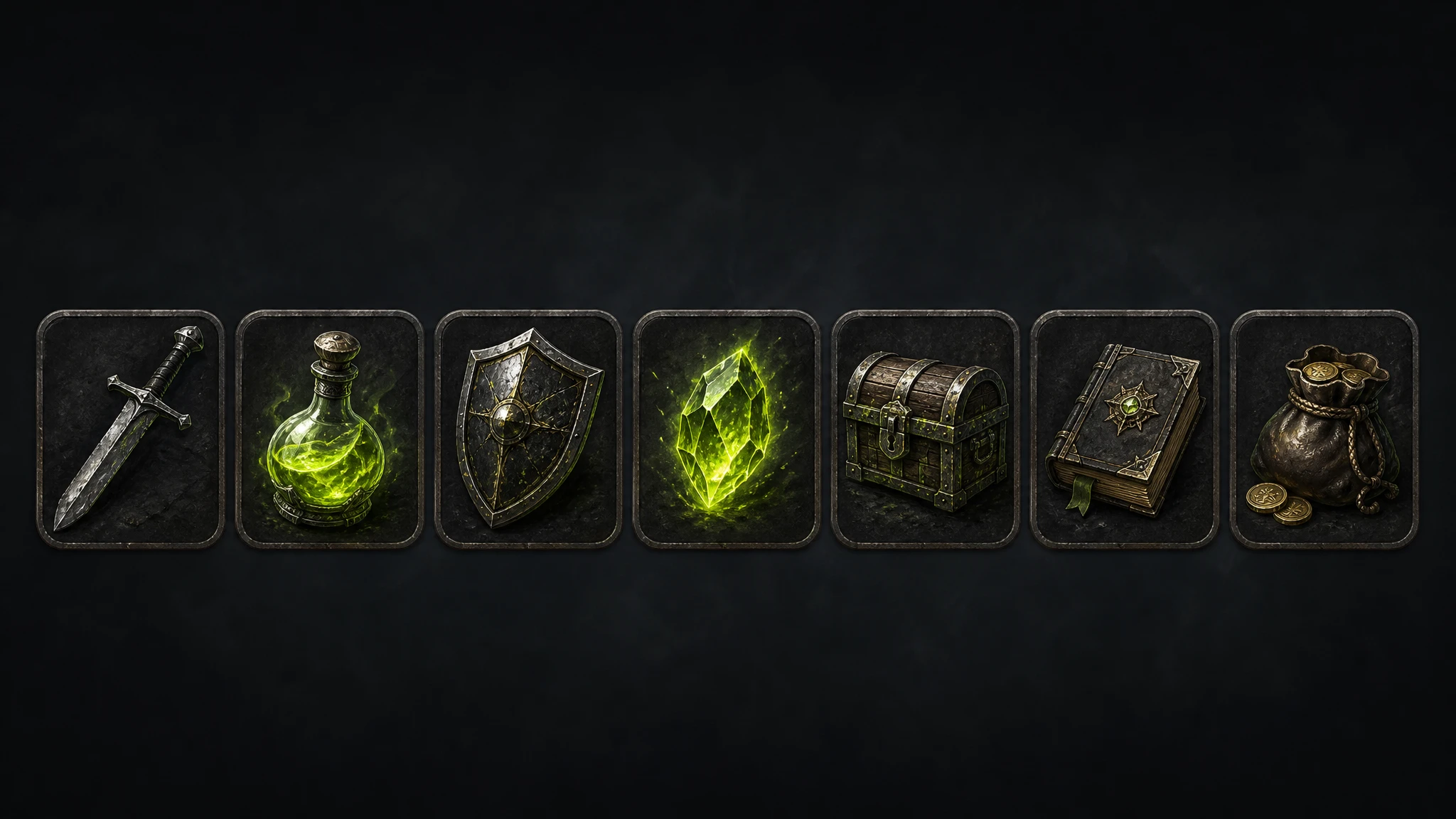
Best Free AI Tools for Game Art in 2026
The best free AI tools for game art in 2026 — sprite sheets, pixel art generator, image to 3D model, video game art, and character turnaround. We rank 7 platforms so you know exactly what you get free before spending a dollar.
Read more →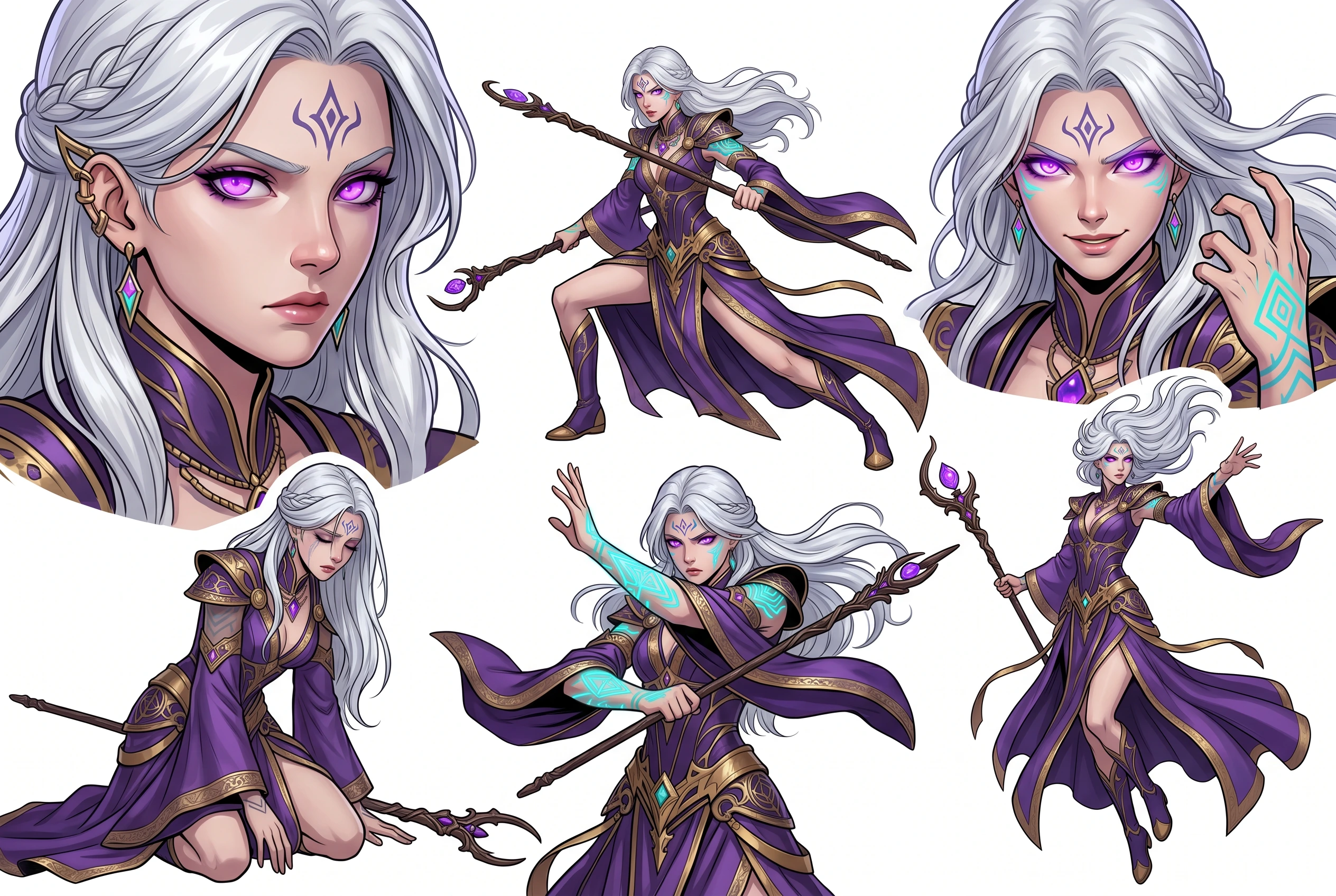
AI Pose Variation Generator
Generate up to 4 AI pose variations from any character — running, T-pose, fighting stance, crouching, jumping and more. The face, costume and art style stay identical across every pose. Free to start.
Read more →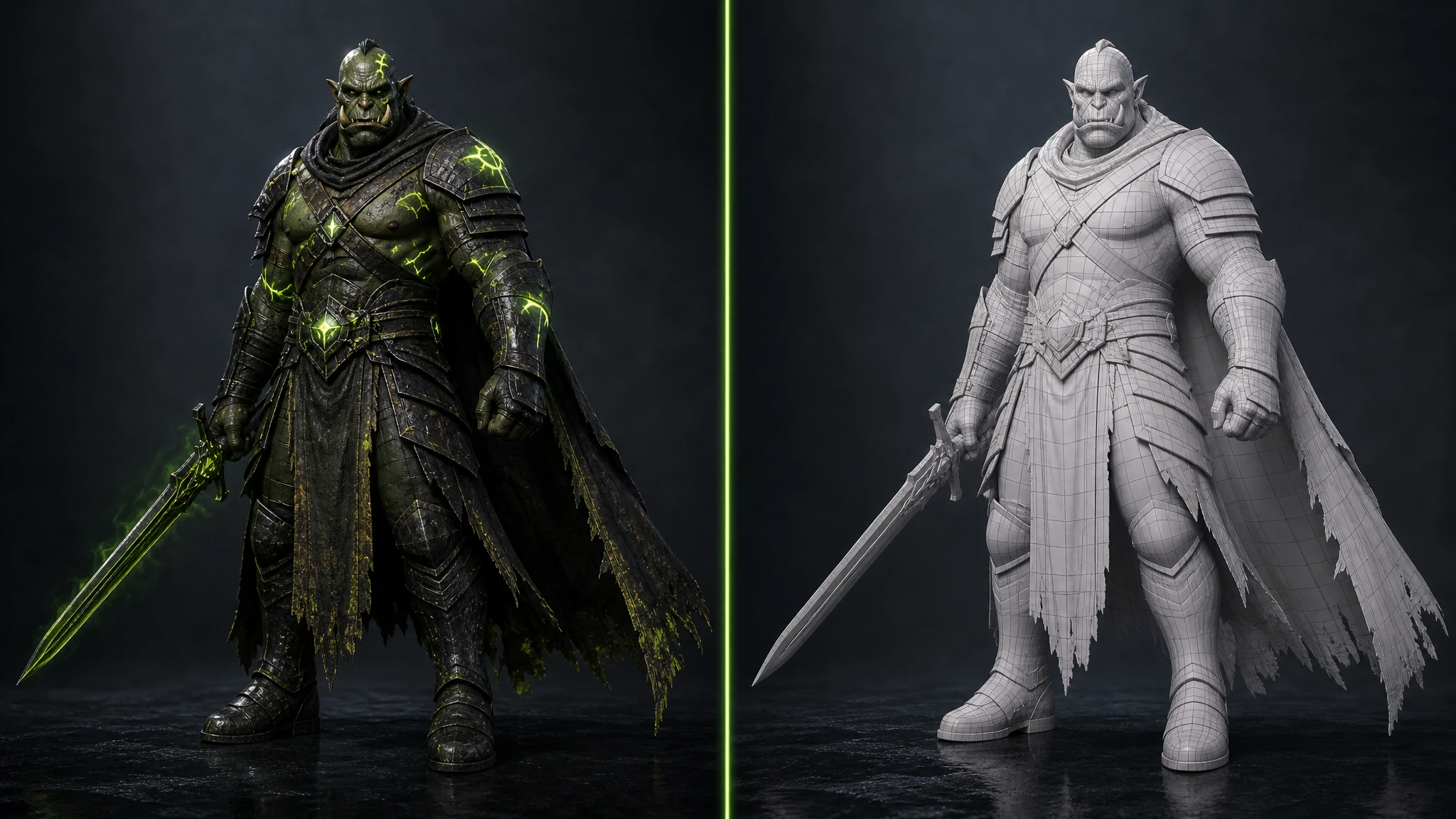
Best AI 3D Model Generator for Game Asset Creation in 2026
The best AI 3D model generator, image to 3D model converter, and best 2D to 3D ai converter for game developers in 2026. We compare 11 platforms — Rapid Assets, Meshy, Tripo AI, Kaedim and more — with pricing, pros, cons and a clear winner.
Read more →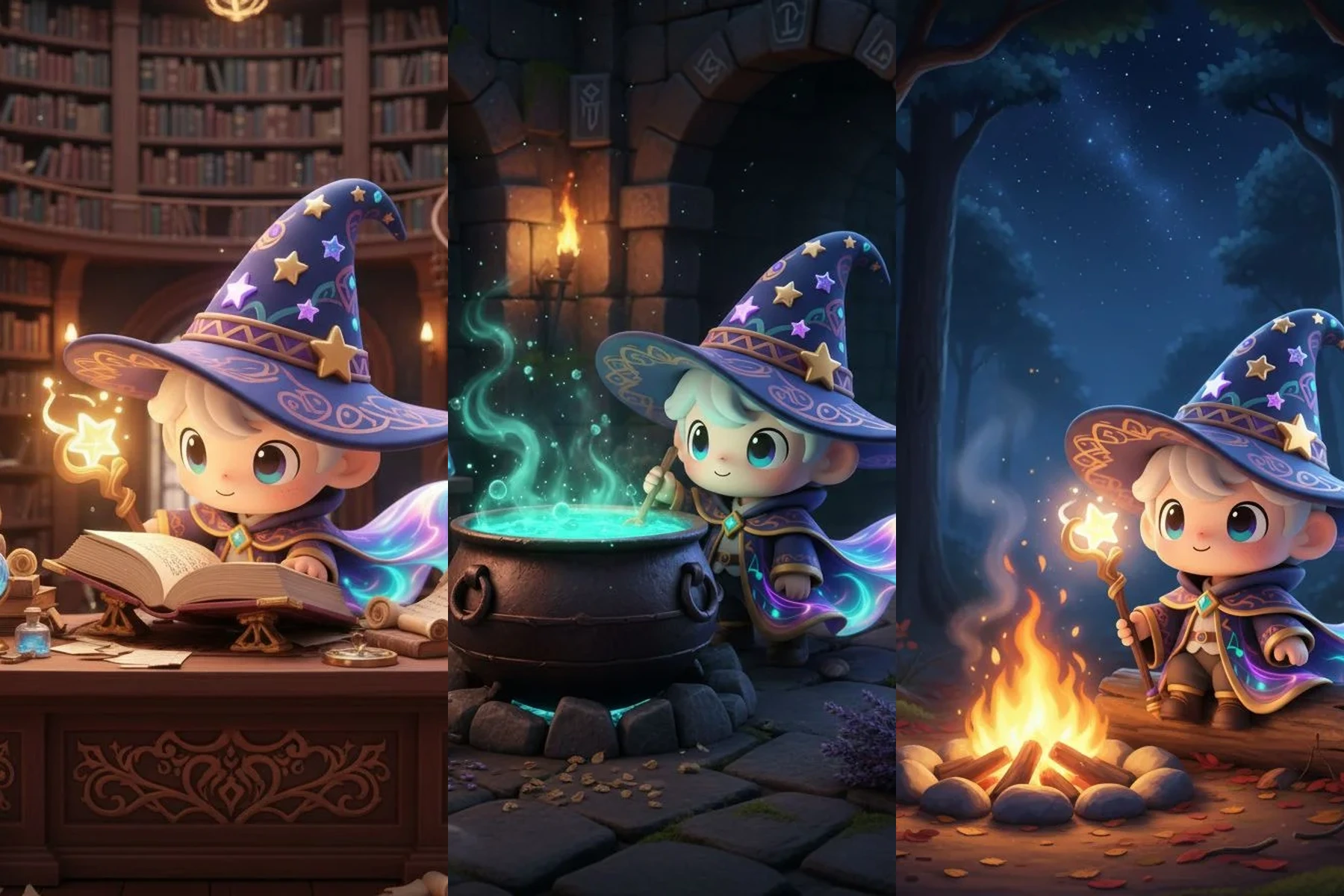
AI Consistent Character Generator
Generate one AI character and reuse it across every pose, scene, expression, turnaround and edit — the face, outfit and design stay perfectly consistent every time. Free to start.
Read more →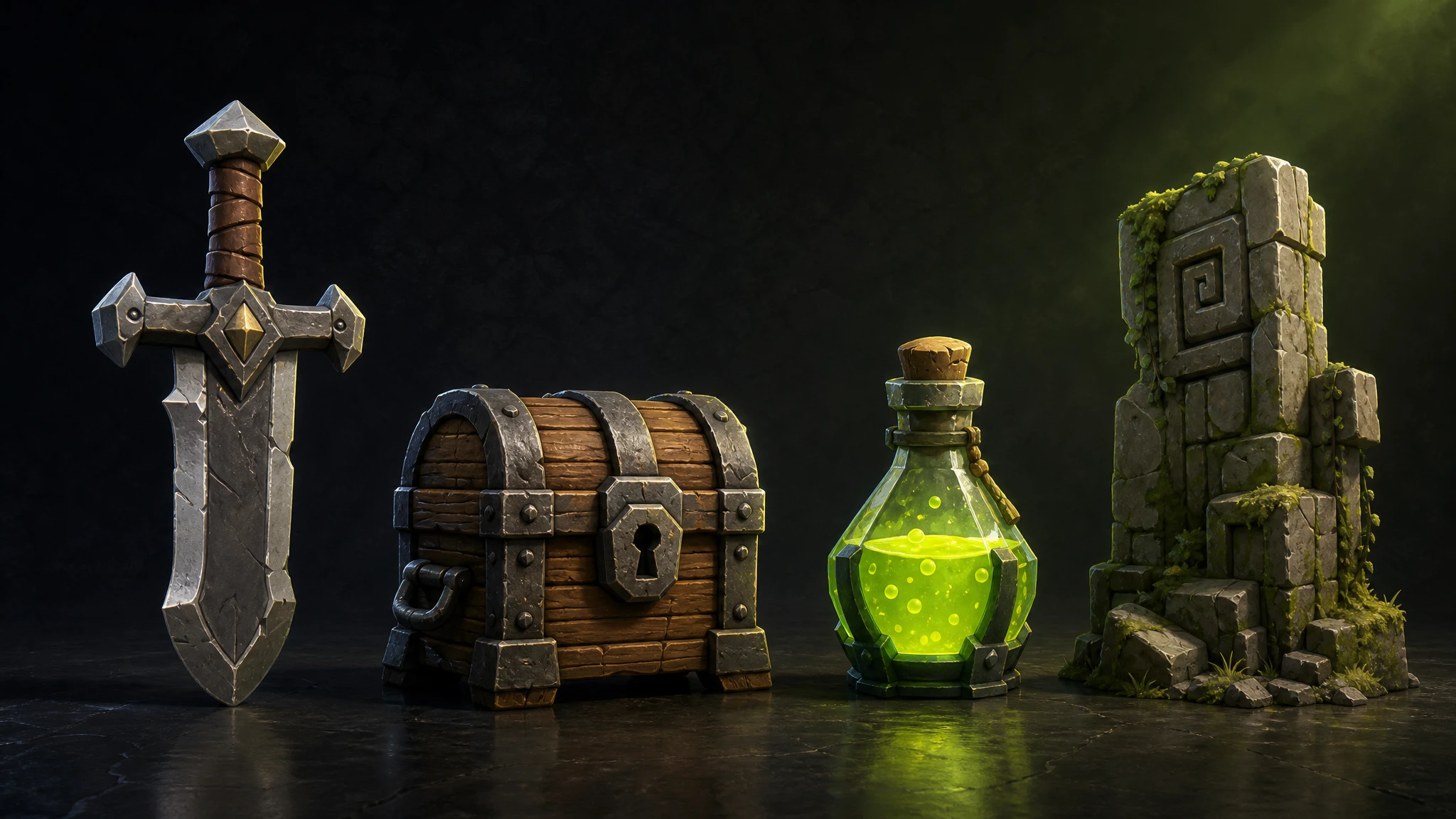
How to Generate 3D Game Assets Using AI
Generate 3D game assets from a text prompt — characters, weapons, creatures and environments with PBR textures, quad topology, LODs and GLB/FBX export. Free to start.
Read more →